
🚀 Step-by-step guide: Learn how to send personalized emails and attachments from Excel
This annotated screenshot highlights the key areas of MultiMail: list selection, message editor, dynamic fields, Outlook signature, sending options (accounts, delay, common attachments), and more. Use the visual guides to understand how everything connects.
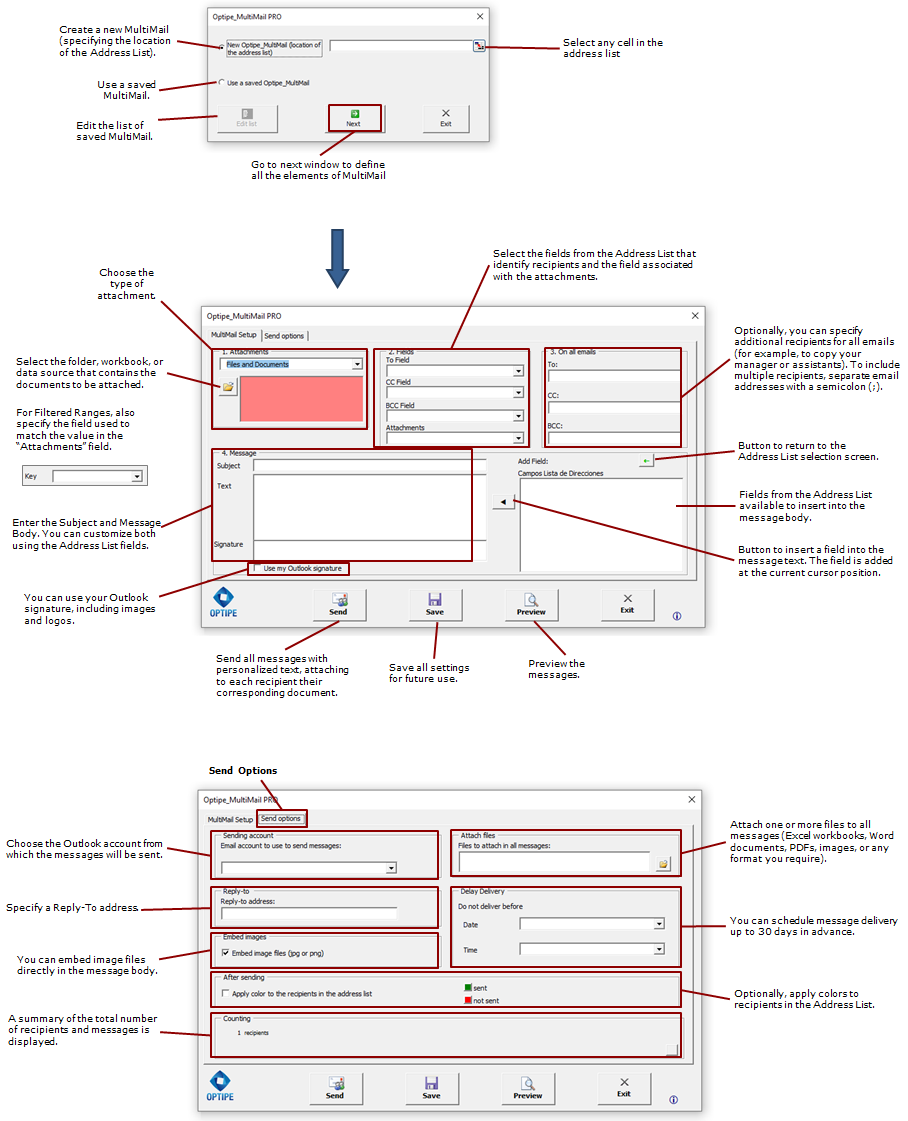
Basic setup steps
? Recipient list
Select your Excel sheet with emails and data fields.
Select your Excel sheet with emails and data fields.
? Sending account
Choose which Outlook account will send the emails.
Choose which Outlook account will send the emails.
↩️ Reply-to address
Define where recipients should send their replies.
Define where recipients should send their replies.
? Common attachments
Add files that will be sent to all recipients.
Add files that will be sent to all recipients.
⏱ Delivery delay
Schedule exactly when your emails will be sent.
Schedule exactly when your emails will be sent.
? Save configuration
Reuse your setup for recurring processes.
Reuse your setup for recurring processes.
? Inline images
Insert images directly inside the email body.
Insert images directly inside the email body.
✅ Pre-send validation
If data or files are missing, the email is not sent.
If data or files are missing, the email is not sent.
Key behavior by sending mode
Each mode defines how data is processed and sent. Click on any mode to see examples and full details:
1. Personalized Notifications

|
2. Excel Sheets

|
3. Files and Documents

|
4. Filtered Data Tables

|
5. Multiple Documents

View mode → |
|
Troubleshoot Email Delivery
I get warnings about a program accessing e-mail address information or sending e-mail on my behalf. See more.
If an Office application isn’t working properly, sometimes restarting it will fix the problem. If that doesn’t work, you can try repairing it. When you’re done, you might need to restart your computer. See more.
