⚙️ Optipe Add-Ins Installation
Follow these steps for a correct installation:
- Close Excel: Save your open workbooks and close the Excel application.
- Configuration & Unzip: Before installation, check the Configuration Settings. Then, unzip the Optipe.zip file. You can drag the folder to "Documents" or your preferred location.
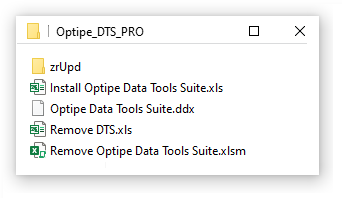
- Run: Open the folder and run the "Install Optipe" program.
⛔ If "Security Risk" message appears:
Microsoft blocks macros from internet files by default. Learn more here.

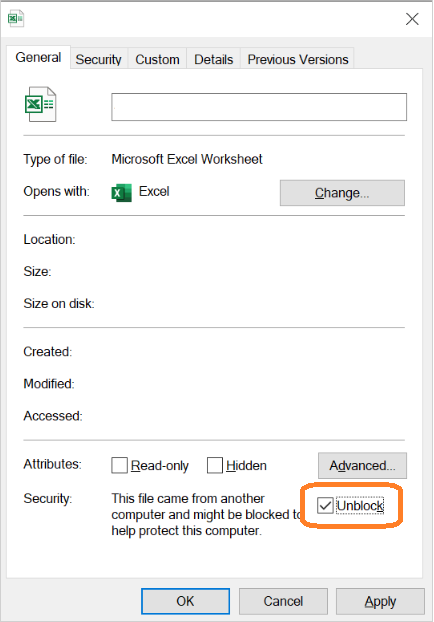
To fix it: Right-click the installation file, go to Properties, and check the "Unblock" box. For more details, see the installation instructions.
⚠️ If "PROTECTED VIEW" appears: Click the "Enable Editing" button, close the installation file, and run it again.
✅ PRO Version Registration
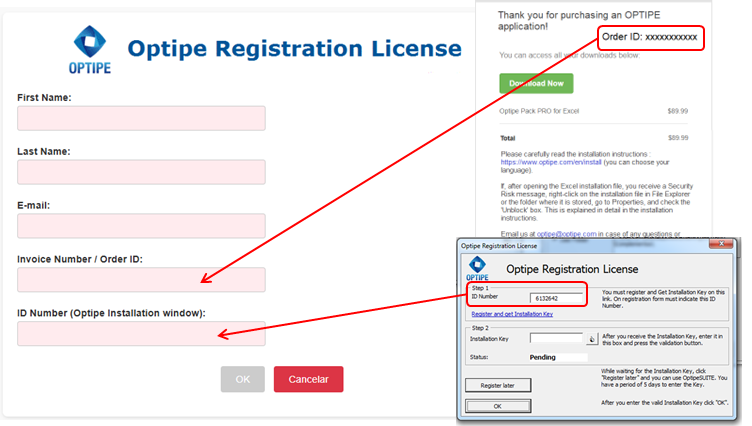
You must register your license to obtain the installation key (within 7 days):
- Click the red link in the installer to open the form.
- Enter your Invoice Number/Order ID and the Optipe ID Number (found in Step 1).
- Once you receive the Installation Key by email, enter it in "Step 2" and validate.
⏳ While waiting for the Key, click "Register later" to use the add-in.
Optipe adds a new Ribbon to Excel with ready-to-use productivity tools
❌ Uninstall or Reinstall
To remove an add-in or upgrade to the PRO version, use the "Remove Optipe" file included in the folder.
Technical issues? Check our uninstallation guide.

