Many budgeting and financial systems use different sign conventions than the people who prepare and review budgets. A budget manager may prefer working with positive expense values because they are easier to read and understand, while an ERP or financial planning system may require those same expenses to be loaded as negative amounts.
This difference may seem minor, but it becomes a repetitive and error-prone task when hundreds or thousands of budget lines must be converted before importing data into Oracle, PBCS or other planning platforms.
Imagine this scenario: department managers submit their annual budgets using positive expense values. After reviewing and approving the figures, you must convert every expense to a negative value before importing the final budget into the organization's financial systems.
Create helper formulas and manually multiply everything by -1? ❌
Convert the entire budget automatically in seconds. ✅
Still doing this manually? Merging tables, comparing lists, cleaning data, and consolidating files can take hours each week. Data Tools Suite automates repetitive tasks in 2 clicks inside Excel—no complex formulas or endless prompts—so you can spend your time analyzing.
TRY IT. YOU'LL GET IT.
📊 How to Convert Positive Expenses to Negative Values Manually
Multiply by -1
The most common approach is to create a helper column and multiply each value by -1.
Requires formulas, extra columns and additional cleanup work.
Copy and Paste Values
After generating the new numbers, users typically replace the original dataset manually.
Adds unnecessary steps and increases the risk of mistakes.
Import Errors
Sign conversion mistakes can create discrepancies when budgets are loaded into ERP systems.
Troubleshooting import errors often takes more time than the conversion itself.
Repeated Processes
Budget data is often revised multiple times before final approval.
The same conversion process must be repeated every time a new version is prepared.
Want to bulk update, round, or adjust values without formulas? Discover the Range Operations App →
⚡ Convert Positive Expenses to Negative Values Automatically with Operations on Ranges
The Operations on Ranges application included in Data Tools Suite provides a dedicated option for reversing the sign of values across an entire Excel range.
Although the operation is mathematically equivalent to multiplying by -1, the application eliminates helper formulas and repetitive manual steps by performing the conversion instantly.
This feature is especially useful for budgeting processes, ERP imports, planning systems, financial consolidations and management reporting workflows.
🔴 Traditional Method
- Create helper formulas.
- Multiply values by -1.
- Copy the results.
- Paste values.
- Remove temporary formulas.
🟢 Using Operations on Ranges
- Select the range.
- Choose Reverse Values.
- Click OK.
- Get the results instantly.
📝 Example: Convert a Budget Before Importing It into an ERP System
Suppose department managers prepare their budgets using positive expense values because they are easier to understand during review and approval processes.
Once the budget has been consolidated and approved, the organization's ERP or planning system requires expenses to be imported using negative values.
Instead of creating temporary formulas and manually converting hundreds of budget lines, Operations on Ranges allows you to reverse every selected value automatically.
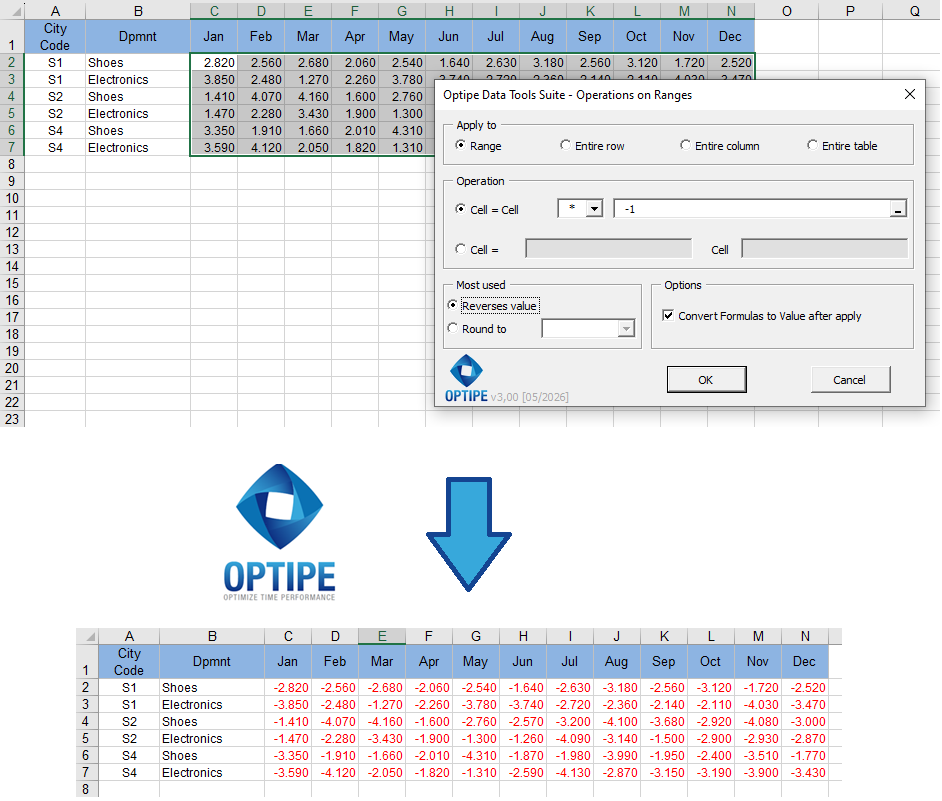
The same budget can be used for management review and later converted automatically for ERP imports.
💡 Result
Budget data is ready for import without helper formulas, additional worksheets or manual sign conversions.
💡 People and Systems Use Different Conventions: Many organizations work with positive expenses during planning and only convert them to negative values when data is loaded into financial systems.
💡 Avoid Helper Columns: Reversing signs directly on the selected range is cleaner and less error-prone than creating temporary formulas.
💡 Work Safely: If needed, simply use Ctrl + Z to undo the operation and restore the original values.
🚀 Discover Everything You Can Do with Operations on Ranges
Reversing signs is only one of the many capabilities available in the Operations on Ranges application included in Data Tools Suite.
- ✔ Apply adjustment factors to budgets and forecasts.
- ✔ Use values stored in worksheet cells as calculation factors.
- ✔ Round figures for professional reports and presentations.
- ✔ Reverse positive and negative values instantly.
- ✔ Apply custom formulas across entire Excel ranges.
🎥 Video: Convert Positive Expenses to Negative Values Automatically
See how Operations on Ranges can instantly reverse the sign of an entire budget, making data ready for ERP imports and financial systems.
📌 Practical Uses for Sign Reversal
Reversing the sign of values is a common requirement in budgeting, accounting and financial planning environments where people and systems follow different conventions.
📊 Budget Preparation
Allow department managers to work with positive expense values that are easier to review and understand.
🏢 ERP Imports
Convert approved budgets into the sign convention required by Oracle, PBCS and other financial systems.
📈 Management Reporting
Standardize the way positive and negative values are presented across reports and financial models.
🔄 Financial Consolidation
Adapt data from different sources before combining it into a single reporting or planning environment.
⏱ Comparison: Traditional Method vs Operations on Ranges
| Traditional Method | Operations on Ranges |
|---|---|
| Create formulas that multiply values by -1. | Use the Reverse Values option directly. |
| Requires helper columns. | No helper columns required. |
| Copy and paste results manually. | Results are applied instantly. |
| Additional cleanup required. | No temporary formulas to remove. |
| Higher risk of import errors. | Consistent and reliable data conversion. |
❓ Frequently Asked Questions
Why do some ERP systems require expenses to be negative?
Many financial and planning systems use predefined accounting conventions where expense accounts are stored using negative values.
Can I reverse hundreds of budget lines at once?
Yes. Operations on Ranges can reverse the sign of every selected value simultaneously, regardless of the size of the dataset.
Is this different from multiplying by -1?
Mathematically it is the same result. The difference is that the application performs the operation instantly without helper formulas or manual steps.
Can I use this feature with annual budgets?
Absolutely. Budget preparation and ERP imports are among the most common use cases for sign reversal.
Does it work with forecasts and planning models?
Yes. Any dataset that requires sign conversion can benefit from this feature.
What if I reverse the wrong range?
Simply use Ctrl + Z to immediately undo the operation and restore the original values.
📚 Related Articles
If you work with budgets, forecasts and ERP imports in Excel, these articles can help automate additional financial planning tasks.
Automate your Excel work and save hours every week
Data Tools Suite includes 18 applications to automate data management, tables and worksheets in Excel.
MultiMail lets you send personalized emails, documents and reports directly from Excel.
TRY IT. YOU'LL GET IT.
🚀 Download Freemium Version