Data scattered across multiple sheets? Group all your tables into a single centralized database with one click, maintaining your information's integrity.
The Append Excel Tables application of Optipe Data Tools Suite is the ideal solution for consolidating distributed information. Forget manual copy-pasting; gather data from branch offices, months, or categories into a single master table. Unlike Excel's built-in Consolidate function, this tool stacks tables with the same format into one, with no formulas and no limits.
Did you know you can expand Excel's features with add-ins?
Optipe Data Tools Suite is the suite with the apps you need to save hours of work in Excel every week. Automate repetitive tasks in just a couple of clicks: no complex formulas, no macros, and no wrestling with AI prompts. This feature is part of the suite.
Automate routine data work instantly with Optipe and reserve your time for strategic analysis.
It installs directly into the Excel ribbon, is available in Freemium and Pro versions, and you can start using it in under a minute. TRY IT. YOU'LL GET IT.
Process Visualization:

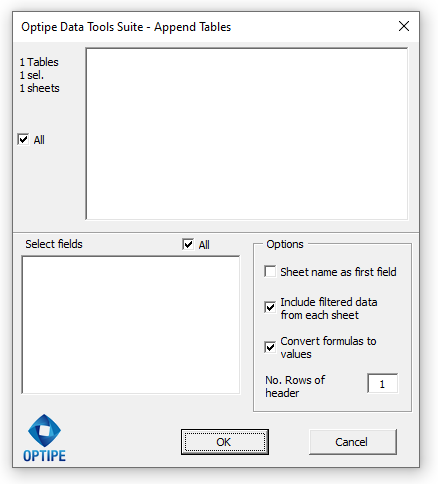
Application Interface:
Why use Append Excel Tables with your data?
Gather sales or production reports from the entire year in seconds.
Easily integrate information coming from different sites or units.
Group data extracts from organizational software for global analysis.
💥 Automated reports without errors
Prepare your data for Pivot Tables or complex reports without complications:
- Choose all fields or only those necessary for your final table.
- Automatically maintains the original structure of your headers.
- Local Security: Like all Optipe software, your data never leaves your computer.
📚 Related Articles
Requirements and Features:
- Tables must be on different sheets within the same workbook.
- Must share the same format (field names and first cell location).
- Agile selection: Use Shift (consecutive) or Ctrl (non-consecutive).
- Supports headers with one or more rows.
- Perfect to combine with Summarize a Table.
🎥 Watch Append Excel Tables in action
1. Group data located in different tables:
2. Group tables with more than one header row:
Managing high volumes of corporate data?
Consolidating information has never been easier. Inquire about our corporate licenses.

