Applying adjustment factors to budgets and financial projections is a common task in organizations of all sizes. Budget planners, financial analysts and management teams frequently need to update hundreds or thousands of values using inflation assumptions, growth projections or corporate adjustment factors.
The calculation itself is usually straightforward. The challenge is applying the factor consistently across an entire worksheet while avoiding formula errors, helper columns and unnecessary manual work.
Imagine this scenario: you have completed next year's budget draft and management asks you to apply a 4.3% adjustment to every projected expense. The percentage is easy. Updating hundreds or thousands of values accurately and consistently is where the real work begins.
Build formulas and update every projection manually? ❌
Apply the adjustment factor across the entire budget automatically. ✅
Still doing this manually? Merging tables, comparing lists, cleaning data, and consolidating files can take hours each week. Data Tools Suite automates repetitive tasks in 2 clicks inside Excel—no complex formulas or endless prompts—so you can spend your time analyzing.
TRY IT. YOU'LL GET IT.
📊 How to Apply Budget Adjustment Factors in Excel Manually
Helper Formulas
Create a new column and multiply every budget value by the adjustment factor.
Requires helper columns and additional formula management.
Copy and Paste Values
After recalculating the figures, many users replace the original values manually.
Adds extra steps and increases the risk of accidental errors.
Recurring Adjustments
Budget assumptions often change several times during planning cycles.
The entire process must be repeated whenever the factor changes.
Formula Errors
Incorrect references can affect hundreds of calculations simultaneously.
Finding and correcting errors later may be difficult.
Want to bulk update, round, or adjust values without formulas? Discover the Range Operations App →
⚡ Apply Budget Adjustment Factors Automatically with Operations on Ranges
The Operations on Ranges application included in Data Tools Suite performs bulk calculations directly on the selected Excel range.
Instead of building formulas manually, you simply select the budget data, choose the operation and specify the adjustment factor. The application updates every selected value automatically.
This approach is particularly useful for annual budgets, financial forecasts, inflation adjustments, cost projections and financial planning models.
🔴 Traditional Method
- Create formulas.
- Copy formulas across the worksheet.
- Verify references.
- Convert formulas back to values.
- Repeat whenever assumptions change.
🟢 Using Operations on Ranges
- Select the budget range.
- Choose the operation.
- Use a fixed factor or a cell reference.
- Click OK.
- Update every value instantly.
📝 Example: Apply a 4.3% Adjustment Factor to Next Year's Budget
Suppose you have prepared an annual budget and management requests a 4.3% adjustment before the final version is submitted for approval.
Rather than creating separate formulas for every account, department or budget category, you store the adjustment factor in a dedicated worksheet cell and use that value to update the entire budget automatically.
The application applies the factor consistently across every selected value while preserving the structure of the worksheet.
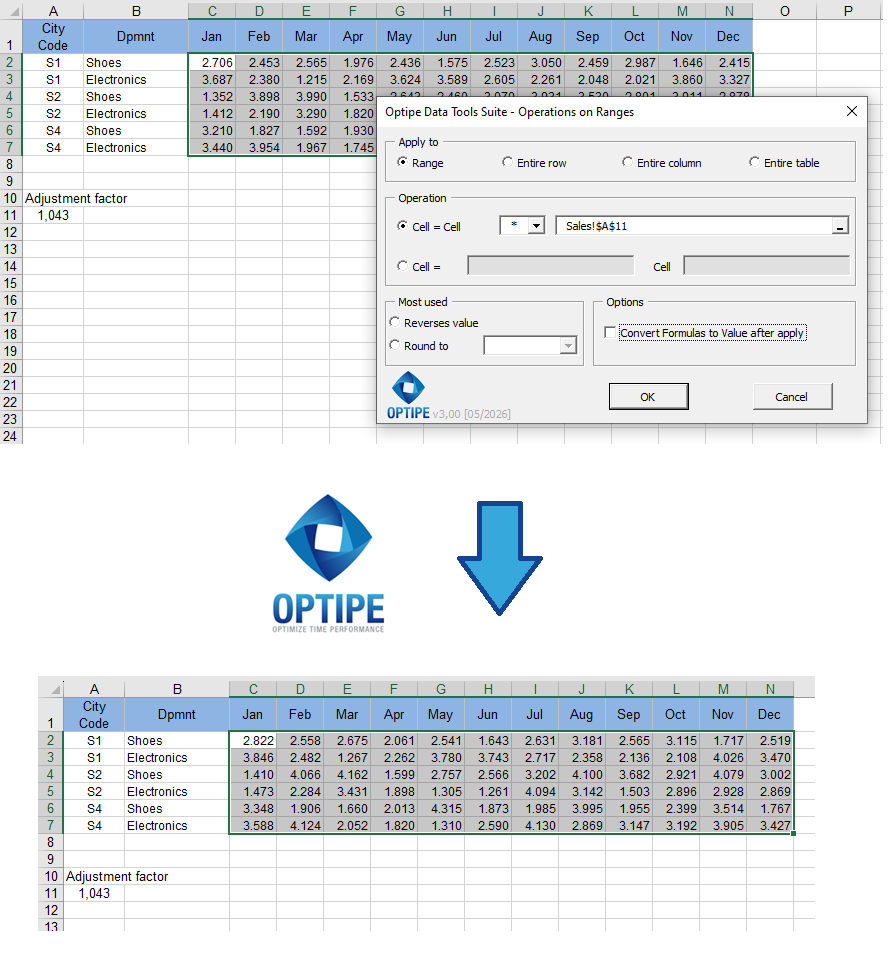
💡 Result
The entire budget is updated consistently in seconds, without helper columns or manual formula management.
💡 Budget Planning Tip: Keep the adjustment percentage in a dedicated cell. When assumptions change, simply update that value and rerun the operation.
💡 Final Results: If you no longer need the formulas, the application can automatically convert the calculated results into final values.
💡 Work Safely: If the wrong factor is applied, use Ctrl + Z to immediately undo the operation.
🚀 Discover Everything You Can Do with Operations on Ranges
Applying adjustment factors is just one of the many capabilities available in the Operations on Ranges application included in Data Tools Suite.
- ✔ Apply budget adjustments across thousands of values.
- ✔ Use external factors stored in worksheet cells.
- ✔ Round results automatically for reporting purposes.
- ✔ Reverse positive and negative values instantly.
- ✔ Apply custom formulas to entire Excel ranges.
🎥 Videos: Apply Budget Adjustment Factors Automatically
See how Operations on Ranges can update budgets and financial forecasts using adjustment factors and cell-based references.
1. Adjust values using a factor located in a worksheet cell:
2. Adjust values and round the results simultaneously:
📌 Practical Uses for Budget Adjustment Factors
Applying a common factor across large datasets is a frequent task in budgeting, forecasting and financial planning environments.
📊 Annual Budgets
Apply inflation assumptions, growth rates or corporate adjustment factors to every budget account consistently.
📈 Financial Forecasts
Update projections using revised assumptions without rebuilding formulas.
🏢 Cost Planning
Adjust operating costs, departmental budgets and resource plans in a controlled and repeatable way.
📑 Scenario Analysis
Evaluate different budget scenarios by changing a single factor and reapplying it to the entire model.
⏱ Comparison: Traditional Method vs Operations on Ranges
| Traditional Method | Operations on Ranges |
|---|---|
| Create formulas manually. | Apply the adjustment directly to the selected range. |
| Requires helper columns. | No helper columns required. |
| Must convert formulas into values manually. | Can automatically convert formulas into final values. |
| Repeated every time assumptions change. | Simply change the factor and run the process again. |
| Higher risk of calculation errors. | Consistent and controlled results. |
❓ Frequently Asked Questions
Can I apply a percentage adjustment to an entire budget?
Yes. Operations on Ranges allows you to apply adjustment factors across complete ranges, worksheets or budget sections in a single operation.
Can I use a factor stored in a worksheet cell?
Yes. This is one of the most useful features for budgeting and forecasting because assumptions can be updated easily whenever needed.
Do I need helper columns or formulas?
No. The application performs the adjustments directly on the selected range, eliminating the need for temporary formulas.
Can I convert the results into values automatically?
Yes. The application can automatically transform the calculated formulas into final values after the operation is completed.
What types of budgets can use this method?
The technique works equally well for operating budgets, departmental budgets, financial forecasts, cost projections and planning models.
What if I apply the wrong factor?
Simply use Ctrl + Z to undo the operation and restore the original values.
📚 Related Articles
If you frequently work with budgets, forecasts and financial models in Excel, these articles can help automate additional planning tasks.
Automate your Excel work and save hours every week
Data Tools Suite includes 18 applications to automate data management, tables and worksheets in Excel.
MultiMail lets you send personalized emails, documents and reports directly from Excel.
TRY IT. YOU'LL GET IT.
🚀 Download Freemium Version