Budgets and financial forecasts often end up filled with decimals that add little value to decision-making. While these figures may be mathematically correct, they can make reports harder to read and reduce the clarity of the information being presented.
This situation is especially common after applying inflation rates, growth assumptions, adjustment factors or forecasting models. The calculations are accurate, but the resulting numbers often become unnecessarily detailed for executive reporting purposes.
Imagine this scenario: you have completed your organization's annual budget and many accounts now contain values with several decimal places. Before presenting the budget, loading it into a financial system or sharing it with management, you want the figures to look clear, consistent and professional.
Present reports filled with unnecessary decimals? ❌
Present rounded, professional-looking figures that are easy to understand. ✅
Still doing this manually? Merging tables, comparing lists, cleaning data, and consolidating files can take hours each week. Data Tools Suite automates repetitive tasks in 2 clicks inside Excel—no complex formulas or endless prompts—so you can spend your time analyzing.
TRY IT. YOU'LL GET IT.
📊 How to Round Numbers in Excel Manually
ROUND Function
Excel allows values to be rounded using the ROUND function and a specified precision level.
Requires formulas that must be copied across large ranges.
ROUNDUP and ROUNDDOWN
Excel can round numbers up or down to a specified level of precision.
Still requires formulas and additional steps when handling large datasets.
Number Formatting
Many users simply reduce the number of visible decimals using Excel formatting options.
Only changes the appearance of the value. The original number remains unchanged.
Repeated Processes
Budgets and forecasts are often revised multiple times during planning cycles.
The rounding process must be repeated every time assumptions change.
Want to bulk update, round, or adjust values without formulas? Discover the Range Operations App →
⚡ Round Budget Figures Automatically with Operations on Ranges
The Operations on Ranges application included in Data Tools Suite allows entire Excel ranges to be rounded instantly without creating helper formulas.
You simply choose whether the values should be rounded to integers, decimals, tens, hundreds or thousands. The application generates the required logic automatically and applies it across the selected range.
This functionality is especially useful for budgeting, forecasting, financial planning, executive reporting and management presentations.
🔴 Traditional Method
- Create rounding formulas.
- Copy formulas across the worksheet.
- Review the results.
- Convert formulas to values.
- Repeat whenever data changes.
🟢 Using Operations on Ranges
- Select the range.
- Choose the rounding level.
- Click OK.
- Get consistent results immediately.
📝 Example: Round a Budget Before Loading It into an ERP System
Suppose you have prepared an annual budget by applying multiple growth assumptions, inflation adjustments or forecasting factors to different budget accounts.
The numbers are mathematically correct, but many accounts now contain decimal places that are unnecessary for reporting and decision-making.
Before presenting the budget, importing it into an ERP or sharing it with stakeholders, you decide to round all values to hundreds or thousands in order to improve readability and consistency.
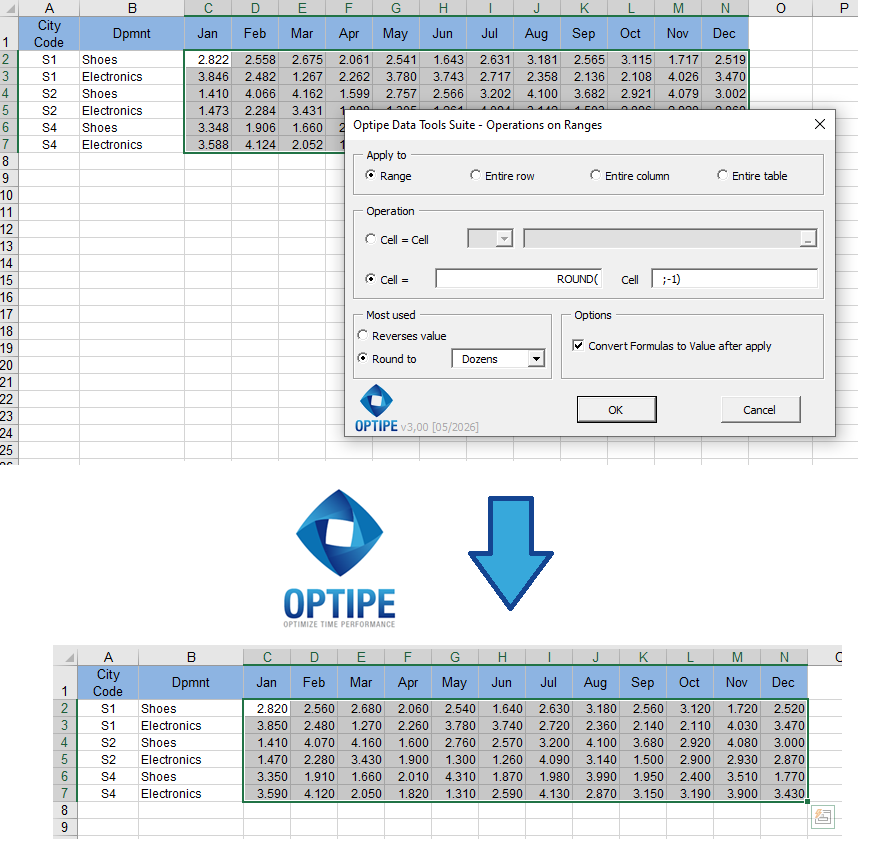
Rounded figures are easier to read, compare and present in budgets and financial forecasts.
💡 Result
The budget becomes cleaner, easier to interpret and more suitable for executive reporting without changing the overall financial analysis.
💡 Professional Presentation: In budgets and forecasts, decimals rarely improve decision-making. Rounding values often makes reports easier to read and understand.
💡 Rounding Is Different from Formatting: Number formatting only changes how values appear. Operations on Ranges performs a real rounding operation and can convert results into final values.
💡 Work Safely: If the rounding level is not what you expected, simply use Ctrl + Z to undo the operation.
💡 Quick 1-click action: If you need to quickly round numbers to integers, hundreds, or thousands without writing formulas, you can use the direct OneClic buttons on the Optipe ribbon. View OneClic in detail →
🚀 Discover Everything You Can Do with Operations on Ranges
Rounding figures is just one of the many capabilities available within the Operations on Ranges application included in Data Tools Suite.
- ✔ Apply adjustment factors to entire budgets and forecasts.
- ✔ Use values stored in worksheet cells as calculation factors.
- ✔ Round figures to integers, tens, hundreds, thousands or decimals.
- ✔ Reverse positive and negative values automatically.
- ✔ Apply custom formulas to entire Excel ranges.
🎥 Video: Round Numbers Automatically in Excel
See how Operations on Ranges can round large groups of values to integers, tens, hundreds, thousands or decimal places in seconds.
📌 Practical Uses for Rounded Figures
Rounding figures is not about changing the financial analysis. It is about presenting information in a cleaner, clearer and more professional way.
📊 Annual Budgets
Present budget figures using rounded values that are easier to review and discuss during approval processes.
📈 Financial Forecasts
Simplify large forecasting models by eliminating decimals that add little value to business discussions.
📑 Executive Reporting
Create reports with cleaner figures that allow managers and executives to focus on trends rather than decimals.
⚙️ ERP Imports
Prepare budget data before loading it into enterprise systems or planning platforms.
⏱ Comparison: Traditional Method vs Operations on Ranges
| Traditional Method | Operations on Ranges |
|---|---|
| Requires rounding formulas. | Select the rounding level directly. |
| Must copy formulas across many rows. | Applies the operation to the entire range. |
| Often requires helper columns. | No helper columns required. |
| Manual conversion of formulas to values. | Can convert formulas to final values automatically. |
| More repetitive work. | Results obtained in seconds. |
❓ Frequently Asked Questions
Can I round values to hundreds or thousands?
Yes. Operations on Ranges allows values to be rounded to integers, tens, hundreds, thousands or decimal places.
Is formatting the same as rounding?
No. Formatting only changes how the number appears. The original value remains unchanged unless a true rounding operation is performed.
Can I use this feature for budgets and forecasts?
Yes. Budgeting and financial forecasting are among the most common use cases because rounded values are easier to present and interpret.
Can I convert the results into final values?
Yes. Operations on Ranges can automatically transform the resulting formulas into final values after the calculation is completed.
Does rounding affect the structure of my worksheet?
No. The process works directly on the selected range without requiring additional worksheets or helper columns.
What happens if I choose the wrong rounding level?
Simply use Ctrl + Z to undo the operation and restore the original values.
📚 Related Articles
If you frequently work with budgets, forecasts and financial planning models in Excel, these articles can help automate additional tasks.
Automate your Excel work and save hours every week
Data Tools Suite includes 18 applications to automate data management, tables and worksheets in Excel.
MultiMail lets you send personalized emails, documents and reports directly from Excel.
TRY IT. YOU'LL GET IT.
🚀 Download Freemium Version