Automatically filling empty cells allows you to transform incomplete tables into reliable datasets ready for reporting, dashboards, analysis, and business intelligence processes. This challenge frequently appears when working with ERP exports, accounting reports, operational systems, and inherited spreadsheets.
Many datasets display values only in the first row of a group. While the information may look correct visually, these structures create problems when building PivotTables, Power BI datasets, formulas, filters, or management reports.
Imagine this situation: you receive a sales report where branch office, department, cost center, or sales representative information appears only occasionally, leaving multiple empty cells throughout the dataset. Before analysis can begin, all missing values must be completed.
Fill hundreds of empty cells manually? ❌
Complete them automatically in seconds? ✅
Did you know you can extend Excel with Add-ins? Optipe's Freemium editions include tools that automate repetitive tasks directly inside Excel. Install them for free in less than a minute and discover how much time you can save.
TRY IT. YOU'LL GET IT.
📋 Situations Where Filling Empty Cells Creates Immediate Value
Branches
Automatically complete branch information within consolidated reports.
ERP Reports
Prepare exports coming from SAP, Oracle and other business systems.
Business Intelligence
Normalize datasets before reporting and dashboard creation.
Reporting
Prepare operational, commercial, and financial reports.
⚡ Transform Incomplete Tables into Analysis-Ready Data
The Fill Empty Cells application automatically completes missing values using the cell above, a reference, a formula, or a fixed value.
This allows incomplete reports to become structured datasets that can be used in PivotTables, dashboards, financial reports, management reporting, and business intelligence systems.
The result is a clean and consistent table ready for analysis.
🔴 Traditional Method
- Locate blank cells manually.
- Copy and paste values repeatedly.
- Drag formulas across multiple rows.
- Check results cell by cell.
- Repeat the process for each file.
🟢 With Fill Empty Cells
- Automatically complete missing data.
- Fill downward or horizontally.
- Use formulas, references, or fixed values.
- Reduce manual errors.
- Prepare data for analysis.
📝 Example: Completing Missing Values in a Sales Report
Imagine receiving a sales report where branch office, department, sales representative, or reporting period information appears only occasionally, leaving numerous blank cells throughout the table.
Although visually understandable, this structure creates serious difficulties for PivotTables, Power BI models, and management reporting.
The application automatically fills missing values using existing information, creating a structured dataset ready for analysis.
💡 Note: This technique is especially useful for ERP exports, financial reports, budgeting processes, sales reports, and operational datasets.
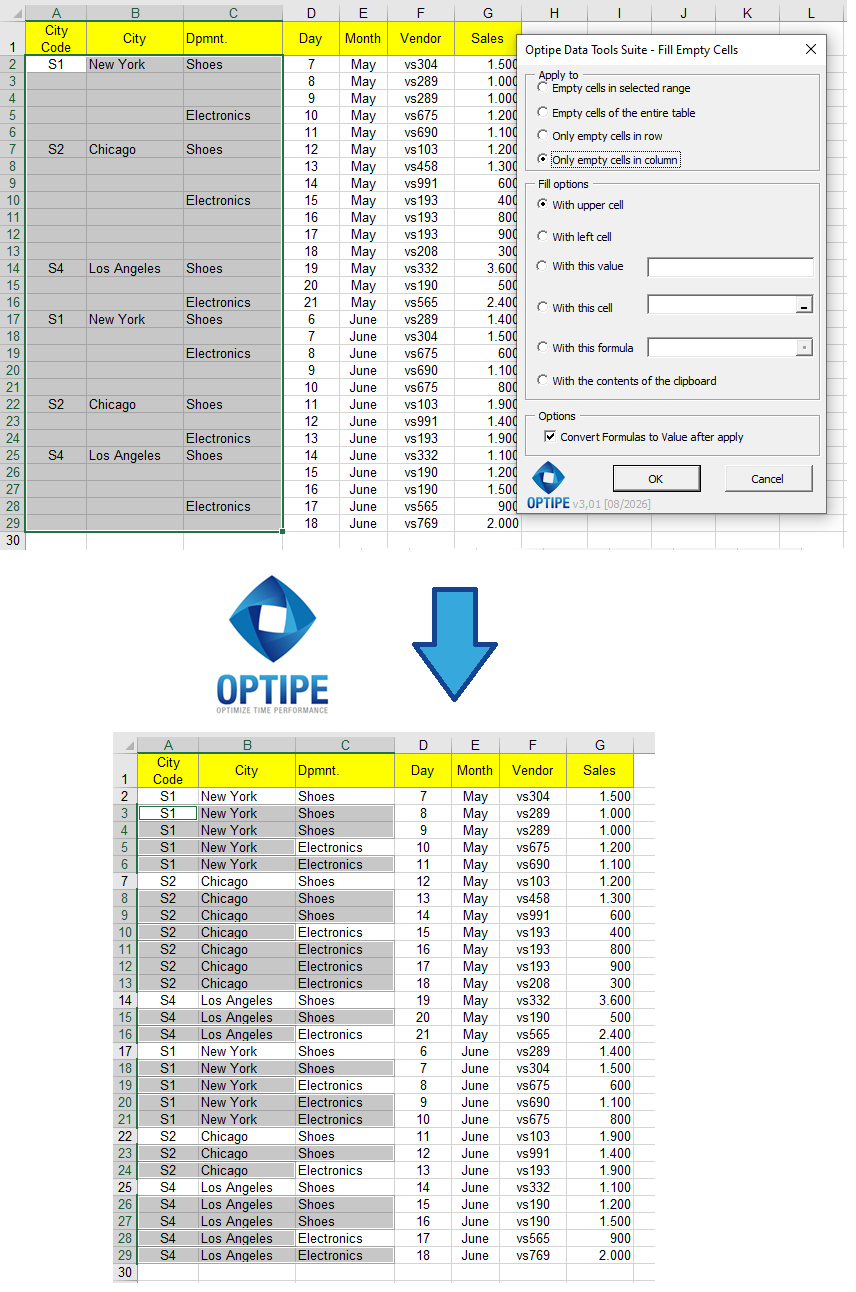
Blank cells can be automatically completed to create a continuous dataset ready for analysis.
💡 Result
Your data becomes complete, structured, and ready for reporting, dashboards, consolidation, and business analysis.
🚀 Much More Than Filling Empty Cells
Fill Empty Cells does much more than populate blank spaces. It helps prepare data for reporting, dashboards, business analysis, and data transformation processes.
- ✔ Automatically complete missing values in datasets.
- ✔ Fill downward or horizontally based on data structure.
- ✔ Use fixed values, formulas, or references.
- ✔ Normalize ERP and business system exports.
- ✔ Prepare data for PivotTables and Power BI.
- ✔ Reduce errors associated with manual processing.
🎥 Videos: Automatically Fill Empty Cells in Excel
Learn different ways to complete missing information using adjacent values, references, formulas, or custom values.
1. Fill Empty Cells Using the Value Above:
2. Use Formulas, References, or Custom Values:
📌 Practical Business Scenarios
📊 Sales Reporting
Automatically complete branch office, sales representative, or category information within sales reports.
💰 ERP Exports
Clean and prepare reports exported from SAP, Oracle, and other business systems.
📋 Budgeting
Complete cost centers, departments, and responsibility areas before consolidation.
📈 Business Intelligence
Prepare structured datasets for dashboards, BI tools, and advanced analytics.
💡 Different Ways to Fill Missing Data
Depending on the structure of your data, empty cells can be completed using different strategies.
- Using the Cell Above: Ideal for grouped reports by branch, department, or cost center.
- Using the Cell to the Left: Useful for horizontal layouts and matrix reports.
- Using a Fixed Value: Assign categories, statuses, or default values.
- Using References: Reuse information from other cells in the worksheet.
- Using Formulas: Create dynamic calculations across large datasets.
⏱ Comparison: Manual Process vs. Fill Empty Cells
| Manual Method | Fill Empty Cells |
|---|---|
| Repeated copy and paste. | Automated completion process. |
| Higher risk of errors. | Consistent results. |
| Slow on large datasets. | Optimized for large data volumes. |
| Repetitive processing. | Work completed in seconds. |
| Extensive data preparation effort. | Data ready for analysis. |
❓ Frequently Asked Questions
Can I fill an entire column using the value above?
Yes. This is one of the most common use cases when working with ERP and business system exports.
Can formulas be used to fill empty cells?
Yes. The application supports formulas, references, fixed values, and other completion methods.
Does it work with large datasets?
Yes. It is designed to process large amounts of information efficiently.
Can it help prepare data for Power BI?
Yes. A complete and continuous dataset significantly simplifies downstream analysis.
Can I fill cells horizontally?
Yes. The application supports both vertical and horizontal filling operations.
Does my data leave my computer?
No. All processing takes place locally on your machine.
📚 Related Articles
Automate your Excel work and save hours every week
Data Tools Suite includes 18 applications to automate data management, tables and worksheets in Excel.
MultiMail lets you send personalized emails, documents and reports directly from Excel.
TRY IT. YOU'LL GET IT.
🚀 Download Freemium Version