Many Excel problems start with poor data quality. Empty cells, formula errors such as #N/A or #REF!, and inconsistent formulas can lead to inaccurate reports, unreliable analysis, and wasted time during validation.
Whether you are working with customer databases, inventory exports, financial reports, ERP downloads or budgeting models, manually locating these issues can quickly become overwhelming.
Imagine this scenario: you are preparing a management report and a simple #N/A error breaks a key calculation. Or perhaps dozens of records contain missing values that prevent dashboards, PivotTables or KPIs from working correctly.
Review thousands of cells manually? ❌
Locate problems automatically in seconds? ✅
Still doing this manually? Merging tables, comparing lists, cleaning data, and consolidating files can take hours each week. Data Tools Suite automates repetitive tasks in 2 clicks inside Excel—no complex formulas or endless prompts—so you can spend your time analyzing.
TRY IT. YOU'LL GET IT.
🔍 Common spreadsheet quality issues
Formula Errors
Find cells containing #N/A, #REF!, #VALUE!, #DIV/0! and other Excel errors.
Empty Cells
Detect missing information before it impacts reports or calculations.
Formulas
Locate formulas containing specific functions, keywords or references.
Data Audits
Validate large worksheets before creating reports or dashboards.
⚡ Audit Excel data in seconds
The Select and Filter Cells application from Optipe Data Tools Suite allows you to instantly locate formula errors, empty cells and specific formulas inside any worksheet, range or table.
Instead of manually reviewing hundreds or thousands of records, the tool automatically identifies every cell matching your chosen criteria.
You can also highlight results, extend the selection to entire rows, or filter matching records for deeper analysis.
🔴 Traditional Approach
- Search errors manually.
- Review formulas one by one.
- Scroll through large tables.
- Create temporary filters.
- Spend time validating reports.
🟢 With Select and Filter Cells
- Choose a search criterion.
- Locate matching cells instantly.
- Highlight or filter results.
- Audit spreadsheets efficiently.
📝 Example: Audit a spreadsheet before generating reports
Imagine receiving an Excel export from an ERP system and needing to verify the quality of the data before creating reports, dashboards or PivotTables.
Some records contain formula errors, others have missing values, and several formulas require validation because they use specific functions.
Finding these issues before generating reports can save hours of troubleshooting later.
💡 Note: This example intentionally combines errors, empty cells and formulas in the same worksheet to demonstrate different auditing capabilities. If your real data looks like this, this article may be even more useful than expected. 😄
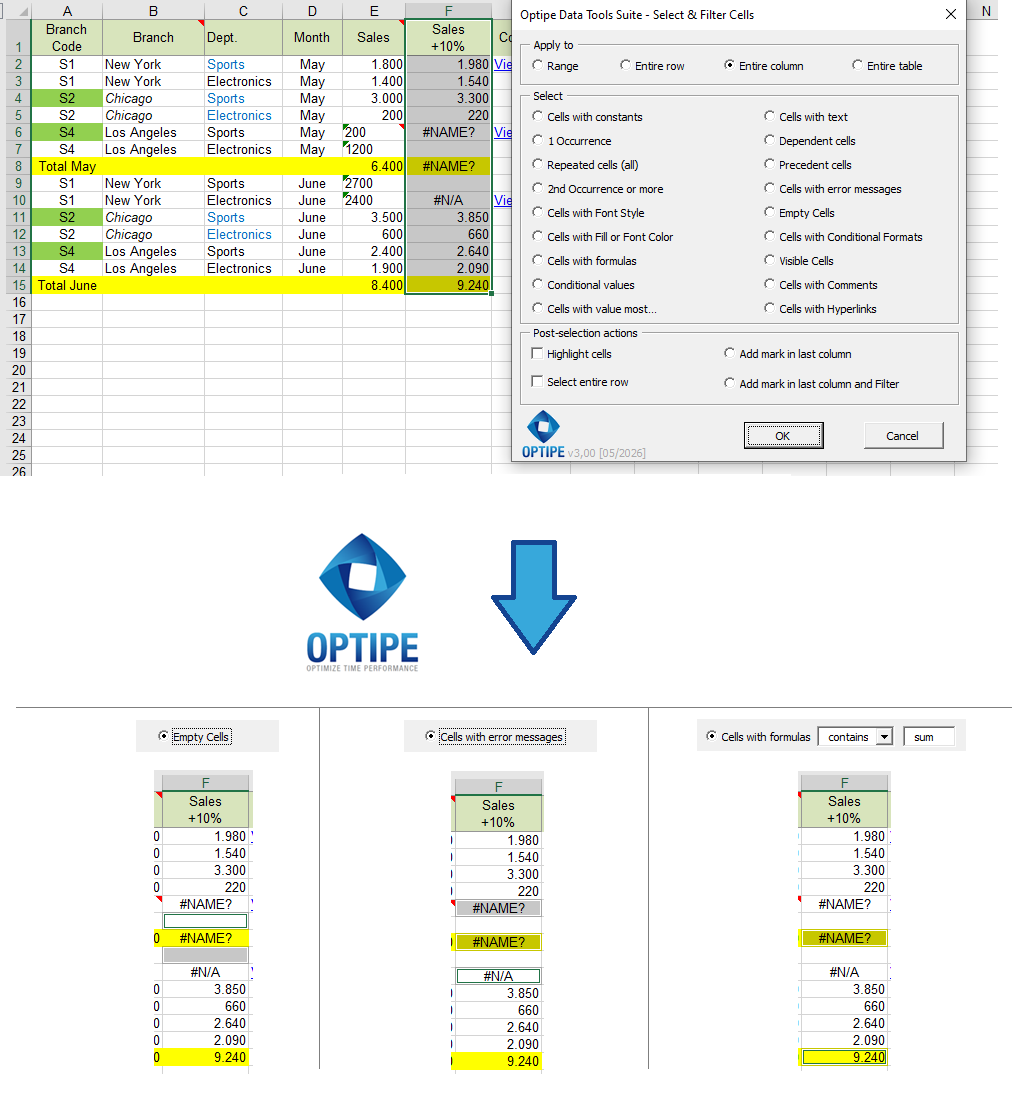
Detecting data issues early improves the quality and reliability of every report.
💡 Result
All problematic records become visible immediately, making it easier to fix errors before they impact reports, dashboards or business decisions.
💡 Work with complete records: Enable "Select entire row" to copy, move or delete complete rows associated with the records found.
🚀 Much more than finding spreadsheet errors
Select and Filter Cells helps you identify data quality issues before they become reporting, dashboard or analysis problems.
- ✔ Find cells containing Excel error messages.
- ✔ Detect missing values across entire tables.
- ✔ Locate formulas containing specific functions.
- ✔ Select complete rows associated with issues found.
- ✔ Highlight, classify or filter problematic records.
- ✔ Improve spreadsheet quality before reporting.
🎥 Videos: Data Quality Auditing in Excel
Learn how to find errors, empty cells and formulas across large spreadsheets in seconds.
Select cells with error messages:
Delete rows that contain empty cells:
Select formulas that meet certain criteria:
📌 Where this tool saves the most time
📊 Management Reports
Validate report quality before presenting dashboards, KPIs or executive summaries.
🏢 ERP Exports
Review imported data before creating reports or integrating information from multiple systems.
💰 Financial Models
Find broken formulas, missing values and critical calculation errors quickly.
📁 Databases
Identify incomplete records before sharing, importing or analyzing business data.
💡 Practical Ways to Audit Data Faster
Finding issues is only the first step. The real productivity gain comes from acting on the records immediately.
- Select entire row: copy, move or delete complete records containing errors or missing values.
- Add mark in last column: classify different types of issues with automatic markers.
- Add mark in last column and Filter: display only records that require attention.
- Highlight cells: visually review errors and inconsistencies inside large tables.
⏱ Comparison: Manual Validation vs. Select and Filter Cells
| Manual Validation | Select and Filter Cells |
|---|---|
| Review cells individually. | Identify matching cells automatically. |
| Create temporary filters. | Work directly with search criteria. |
| High risk of overlooking problems. | Consistent and repeatable results. |
| Time-consuming on large datasets. | Designed for large spreadsheets. |
| Manual auditing process. | Fast, structured data auditing. |
❓ Frequently Asked Questions
Can I find specific Excel errors such as #N/A or #REF!?
Yes. The tool automatically identifies cells containing Excel error messages so they can be reviewed or corrected.
Can I search an entire table?
Yes. Searches can be performed on a selected range, a row, a column or the entire table.
Can I locate formulas containing a specific function?
Yes. You can search for formulas that begin with, end with or contain specific functions, text strings or references.
Why would I use “Select entire row”?
It allows you to work with complete records instead of individual cells, making audits and cleanups much faster.
Can I detect missing information before generating reports?
Yes. Finding empty cells is one of the fastest ways to validate spreadsheet quality before reporting.
Does the tool modify my Excel data?
No. The application identifies and selects matching records. You decide what actions to take afterwards.
📚 Related Articles
Automate your Excel work and save hours every week
Data Tools Suite includes 18 applications to automate data management, tables and worksheets in Excel.
MultiMail lets you send personalized emails, documents and reports directly from Excel.
TRY IT. YOU'LL GET IT.
🚀 Download Freemium Version