
Cleaning and preparing data in Excel is one of the most repetitive tasks in administrative work. Every day, thousands of professionals search for ways to remove extra spaces, fix inconsistent text, convert numbers stored as text, fill blank cells, and remove duplicate records before they can create reliable reports, dashboards, or pivot tables. In this article, you'll discover all the available approaches and easy ways to solve it automatically in seconds.
In my nearly 30 years of experience managing administrative operations, I have learned that the ultimate enemy of productivity isn't a complex report—it’s dirty data. I have watched brilliant professionals waste entire workdays manually fixing flawed files generated by enterprise systems. Dealing with messy text, invisible spaces, or blank cells is an exhausting, invisible chore that drains the time you should spend analyzing data. That exact daily frustration drove me to build the debugging and cleaning tools inside Optipe. I wanted to turn data preparation from a tedious manual bottleneck into an automatic, one-click solution.
Picture this: You download a report from your ERP, import a sales CSV, or scrape data from the web… and it’s a complete mess. Inconsistent text, extra spaces, numbers that won’t add up, and blank cells breaking your formulas and pivot tables.
Keep struggling with frustrating manual methods? ❌
Or automate it in minutes with smart tools? ✅
Still doing this manually? Merging tables, comparing lists, cleaning data, and consolidating files can take hours each week. Data Tools Suite automates repetitive tasks in 2 clicks inside Excel—no complex formulas or endless prompts—so you can spend your time analyzing.
TRY IT. YOU'LL GET IT.
🔍 Most Common Problems When Preparing Data in Excel
Inconsistent Text
Mixed case, trailing spaces, and accents that create duplicate records.
Numbers as Text
Excel can’t sum, average, or use them in formulas correctly.
Blank Cells
They break continuity and prevent pivot tables from grouping.
Duplicates
Repeated records and hidden errors that distort your analysis.
⚡ How to Clean & Prepare Data in Excel: Manual Methods vs Automation
🧹 Excel Functions, Tools and Common Data Cleaning Tasks
Cleaning and preparing data in Excel involves much more than removing duplicates. It's common to trim extra spaces, standardize text, convert numbers stored as text, fill blank cells, and normalize imported data before you can analyze it. These are the Excel functions, tools, and data cleaning tasks used most frequently.
🛠️ Excel Functions and Tools
- TRIM() – Removes extra spaces.
- CLEAN() – Removes non-printable characters.
- UPPER() – Converts text to uppercase.
- LOWER() – Converts text to lowercase.
- PROPER() – Capitalizes the first letter of each word.
- SUBSTITUTE() and REPLACE() – Replace text and characters.
- VALUE() – Converts text into numbers.
- Find & Replace
- Text to Columns
- Remove Duplicates
- Power Query
⚠️ Common Data Cleaning Tasks
- Remove leading and trailing spaces.
- Remove double spaces.
- Convert uppercase and lowercase text.
- Capitalize the first letter of each word.
- Remove special characters.
- Remove accents and diacritics.
- Convert numbers stored as text.
- Fill blank cells.
- Delete blank rows.
- Find and remove duplicates.
- Normalize imported data.
The problem? Excel provides powerful functions and tools for cleaning data, but repeating these tasks every day quickly becomes time-consuming. Data Tools Suite brings them together in intuitive visual assistants that let you clean and prepare your data in just a few clicks.
1. How to Standardize Text in Excel (Case, Spaces, Accents)
🔴 How to Do It Manually
- Helper columns with
=UPPER(),=TRIM(),=PROPER() - Find & Replace for accents (one by one)
- Copy-Paste Values (risk of misalignment)
🟢 Automated with Data Tools Suite
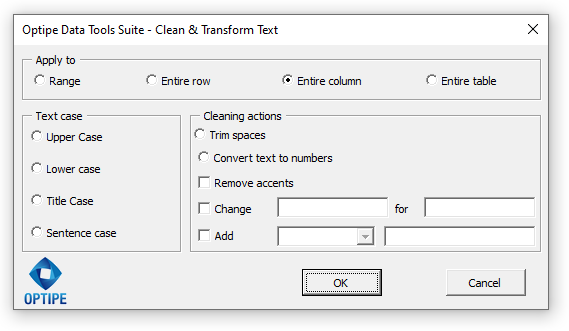
Select the range → choose options (uppercase, remove spaces/accents) → one click and done.
📚 Related Articles
2. How to Fill Blank Cells in Excel
🔴 How to Do It Manually
- Go To → Special → Blanks
- Type formula and Ctrl+Enter
🟢 Automated with Data Tools Suite
Select range → choose method (above, below, constant…) → apply in seconds.

📚 Related Articles
3. How to Modify Thousands of Cells at Once
🔴 How to Do It Manually
- Helper columns with formulas
- Copy-Paste Values
🟢 Automated with Data Tools Suite
Select range → choose operation → apply directly to the data.

📚 Related Articles
4. How to Remove Duplicates & Errors in Excel
🔴 How to Do It Manually
- Remove Duplicates (sometimes fails)
- Advanced filters + manual row selection
🟢 Automated with Data Tools Suite
Define criteria → automatically select entire rows → delete or highlight.

📚 Related Articles
💡 Pro Bonus:
Need to unpivot columns like Power Query? 👉 How to Unpivot Excel Columns for Power BI, Dashboards and Data Analysis
Need to clean data after copying it from the web? 👉 How to Clean Objects, Shapes and Hyperlinks in Excel to Prepare Data and Reports
Cleaning and preparing data in Excel shouldn't consume hours of your workweek. Whether you need to remove extra spaces, standardize text, convert numbers stored as text, fill blank cells, or eliminate duplicates, automating these repetitive tasks allows you to spend more time analyzing data instead of fixing it. Data Tools Suite brings all these capabilities together in a single Excel add-in so you can prepare your data in seconds.
⏱️ Real Time Savings: Manual vs Data Tools Suite
| Task (10,000 rows) | Manual | DTS |
|---|---|---|
| Standardize Text | 2–4 hours | 30 seconds |
| Fill Blank Cells | 1–2 hours | 10 seconds |
| WEEKLY TOTAL | 8–12 hours | Under 5 minutes |
📚 Recommended Resources from Excel Experts
→ Top ten ways to clean your data - Microsoft
📚 Want to keep improving your Excel productivity?
Go to Optipe Blog →Automate your Excel work and save hours every week
Data Tools Suite includes 18 applications to automate data management, tables and worksheets in Excel.
MultiMail lets you send personalized emails, documents and reports directly from Excel.
TRY IT. YOU'LL GET IT.
🚀 Download Freemium Version