Consolidating multiple Excel worksheets into a single table allows organizations to combine information distributed across branch offices, departments, reporting periods or business units into one centralized database for analysis, reporting and decision-making. This is a common requirement in finance, operations, management control, sales reporting and business intelligence processes.
When related data is spread across multiple worksheets, creating Pivot Tables, dashboards and consolidated reports becomes more difficult. Before meaningful analysis can take place, information must first be gathered into a consistent master table.
Imagine this scenario: your New York, Berlin and London branch offices maintain separate worksheets using the same structure. Management requires a consolidated sales report covering all locations. How do you combine everything without manually copying and pasting thousands of records?
Copy and paste data worksheet by worksheet? ❌
Create a consolidated master table automatically? ✅
Still doing this manually? Merging tables, comparing lists, cleaning data, and consolidating files can take hours each week. Data Tools Suite automates repetitive tasks in 2 clicks inside Excel—no complex formulas or endless prompts—so you can spend your time analyzing.
TRY IT. YOU'LL GET IT.
🔍 Common situations where worksheet consolidation adds value
Branch Offices
Combine information coming from multiple locations into one report.
Monthly Reports
Merge monthly worksheets into a single annual database.
Budgets
Combine departmental budgets for global analysis.
Business Reporting
Prepare consolidated datasets for KPIs and dashboards.
⚡ Build a centralized master table for analysis
The Append Excel Tables application combines data from multiple worksheets into a single master table while preserving the original structure of the information.
Instead of manually copying data or creating complex formulas, all selected worksheets can be consolidated automatically into one dataset ready for reporting.
The final result is a clean and consistent table suitable for Pivot Tables, Power Query, dashboards and advanced analysis.
🔴 Traditional Approach
- Copy data sheet by sheet.
- Create temporary worksheets.
- Review headers manually.
- Fix consolidation errors.
- Spend hours repeating the process.
🟢 With Append Excel Tables
- Select the worksheets to combine.
- Preserve the original structure.
- Create a centralized master table.
- Prepare data for reporting instantly.
- Reduce manual errors.
📝 Example: Consolidate branch office sales into one table
Suppose your New York, Berlin and London offices maintain separate worksheets containing sales information. Each worksheet uses the same fields and follows the same structure.
Before creating management reports, you need to combine all records into a single centralized dataset.
Append Excel Tables automatically consolidates all selected worksheets and creates a master table containing information from every branch office.
💡 Note: This example uses three branch offices for demonstration purposes, but the same approach can be applied to dozens of worksheets representing regions, departments, projects or reporting periods.
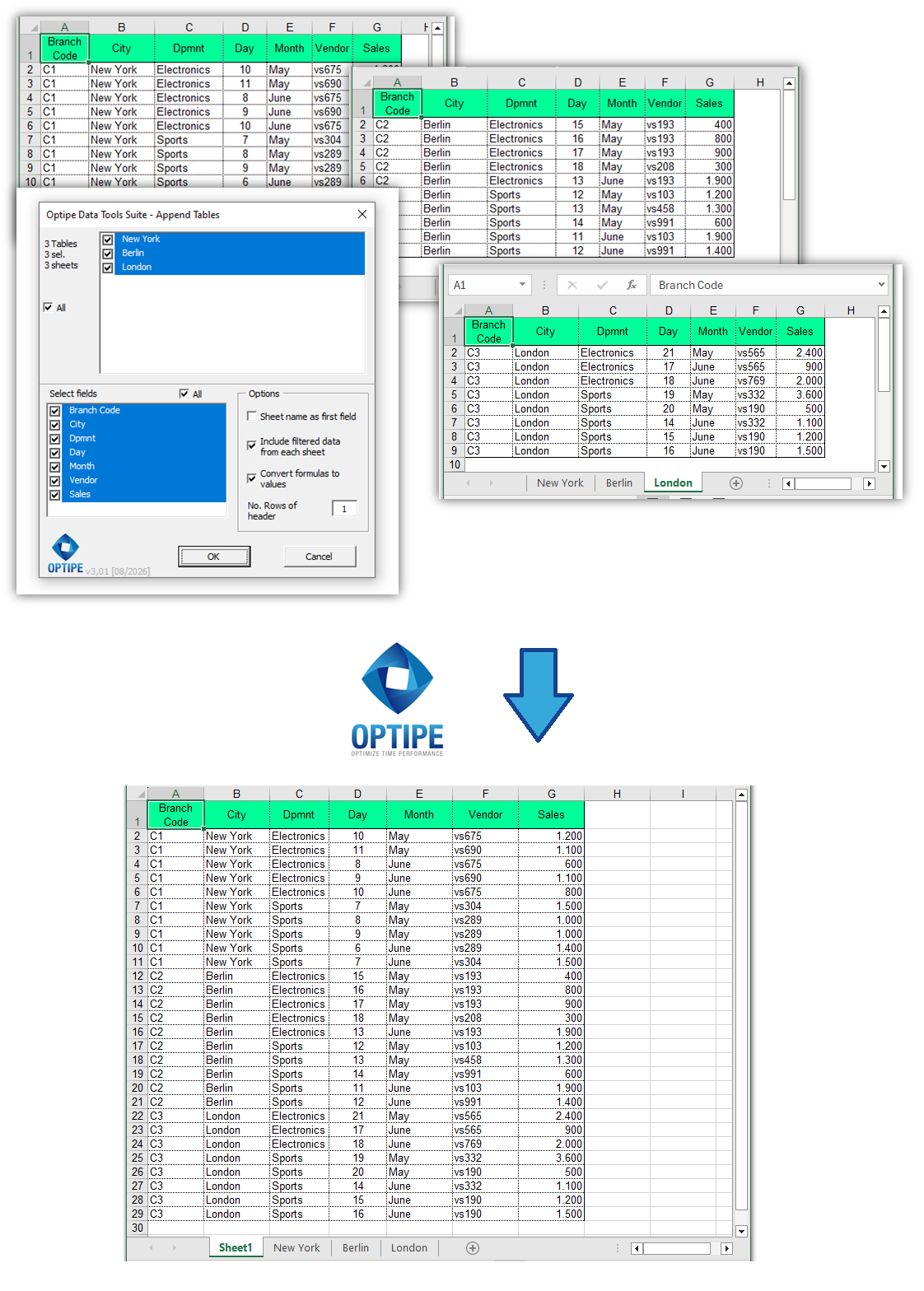
Multiple worksheets can be combined automatically into a centralized master table.
💡 Result
All information becomes available in a single database, making reporting, analysis and decision-making significantly easier.
🚀 Much more than combining Excel worksheets
Append Excel Tables does much more than merge worksheets. It prepares distributed information for reporting, business intelligence, KPI tracking and enterprise-level analysis.
- ✔ Combine multiple worksheets into one centralized master table.
- ✔ Preserve the original worksheet structure automatically.
- ✔ Select all fields or only the relevant ones.
- ✔ Prepare datasets for Pivot Tables, Power Query and dashboards.
- ✔ Reduce manual processing and data preparation time.
- ✔ Work locally while keeping corporate data secure.
🎥 Videos: Consolidating Excel Worksheets
Learn how to combine data from multiple worksheets into a centralized master table ready for analysis and reporting.
📌 Business scenarios where worksheet consolidation is essential
🏢 Branch Office Reporting
Combine data from multiple locations into a single dataset for corporate analysis and management reporting.
📅 Monthly Performance Tracking
Merge monthly worksheets to create annual reporting and long-term performance analysis.
💰 Budget Consolidation
Centralize departmental budgets and financial information into one reporting structure.
📊 Business Intelligence
Prepare large datasets for dashboards, KPI monitoring and executive reporting.
💡 Typical worksheet consolidation requirements
For a successful consolidation process, worksheets should follow a consistent structure.
- Same fields: every worksheet should contain equivalent columns and information.
- Consistent structure: tables should begin in the same location within each worksheet.
- Compatible headers: supports both single-row and multi-row headers.
- Same workbook: worksheets should belong to the same Excel file before consolidation.
- Uniform reporting format: ideal for branch offices, monthly reports and recurring exports.
When these conditions are met, consolidation becomes fast, reliable and fully repeatable.
💡 Next Step: Split or redistribute consolidated information
💡 Tip: Once your information has been consolidated into a centralized master table, you can automatically split it back into individual worksheets by customer, branch office, department or salesperson whenever separate reports are required.
👉 How to Split an Excel Table into Multiple Worksheets Automatically
⏱ Comparison: Manual Consolidation vs. Append Excel Tables
| Manual Consolidation | Append Excel Tables |
|---|---|
| Copy worksheets manually. | Automatic worksheet consolidation. |
| Create temporary worksheets. | Centralized master table creation. |
| Higher risk of errors. | Consistent and repeatable results. |
| Time-consuming on large datasets. | Designed for large data volumes. |
| Complex preparation work. | Report-ready data in seconds. |
❓ Frequently Asked Questions
Can I consolidate branch office worksheets?
Yes. This is one of the most common uses of the application.
Do all worksheets need the same structure?
Yes. Worksheets should contain the same fields and general layout to ensure a correct consolidation.
Can I choose which fields to include?
Yes. You can consolidate all columns or select only the information needed in the final table.
Does it support multi-row headers?
Yes. The application supports worksheets containing more than one header row.
Can the consolidated data be used in Pivot Tables?
Absolutely. One of the main benefits is preparing information for Pivot Tables and business analysis.
Do my data leave my computer?
No. All processing is performed locally on your machine.
📚 Related Articles
- Append Excel Tables in Seconds: App Data Tools Suite
- How to Split an Excel Table into Multiple Worksheets Automatically
- How to Create an Excel File for Each Customer, Branch Office or Department
- How to Export Every Excel Worksheet to PDF Automatically
- How to Create a Master Excel Workbook from Multiple Files
- How to Manage Multiple Excel Worksheets in Seconds
- How to Consolidate Excel Forms Automatically and Create an Analysis-Ready Database
Automate your Excel work and save hours every week
Data Tools Suite includes 18 applications to automate data management, tables and worksheets in Excel.
MultiMail lets you send personalized emails, documents and reports directly from Excel.
TRY IT. YOU'LL GET IT.
🚀 Download Freemium Version