Splitting an Excel table into multiple worksheets allows organizations to automatically generate individual reports for customers, branch offices, departments, salespeople or business units from a single master database. This is a common requirement in finance, sales, operations, human resources and management reporting.
When a table contains information belonging to multiple recipients, manually filtering, copying and creating worksheets becomes repetitive, time-consuming and prone to errors. Large datasets only make the problem worse.
Imagine this scenario: you have a consolidated sales database containing records from New York, Berlin and London. Each branch manager needs an individual report. How do you automatically generate separate worksheets without manually filtering and copying data?
Create branch reports one by one manually? ❌
Generate all worksheets automatically in seconds? ✅
Still doing this manually? Merging tables, comparing lists, cleaning data, and consolidating files can take hours each week. Data Tools Suite automates repetitive tasks in 2 clicks inside Excel—no complex formulas or endless prompts—so you can spend your time analyzing.
TRY IT. YOU'LL GET IT.
📌 Common situations where worksheet segmentation is useful
Branch Offices
Generate a separate worksheet for every business location.
Salespeople
Create individual sales reports for each representative.
Customers
Prepare personalized worksheets from a centralized database.
Departments
Distribute information to different business units efficiently.
⚡ Turn one master table into dozens of individual worksheets
The Split into Sheets application automatically creates a new worksheet for every unique value found in a selected column. A single master table can therefore become dozens or even hundreds of perfectly organized reports.
You can also choose which columns should be included in the generated worksheets, keeping only the information that matters to each recipient.
The result is a structured workbook containing clean and organized worksheets ready for review, reporting or distribution.
🔴 Traditional Approach
- Filter data manually.
- Copy records repeatedly.
- Create worksheets one at a time.
- Paste information into new sheets.
- Risk introducing errors.
🟢 With Split into Sheets
- Create a worksheet for every unique value.
- Select only the columns you need.
- Maintain data integrity automatically.
- Generate dozens of sheets in seconds.
- Produce report-ready worksheets instantly.
📝 Example: Create a worksheet for each branch office
Suppose you have a centralized sales table containing records for New York, Berlin and London. Each row contains data for a specific branch office, but all information is stored in the same worksheet.
The application analyzes the selected column and automatically creates a separate worksheet for every branch office found in the table.
Each worksheet contains only the records belonging to that location while preserving the original data structure.
💡 Note: The same methodology can be applied to customers, departments, projects, salespeople, regions or any other category present in your data.
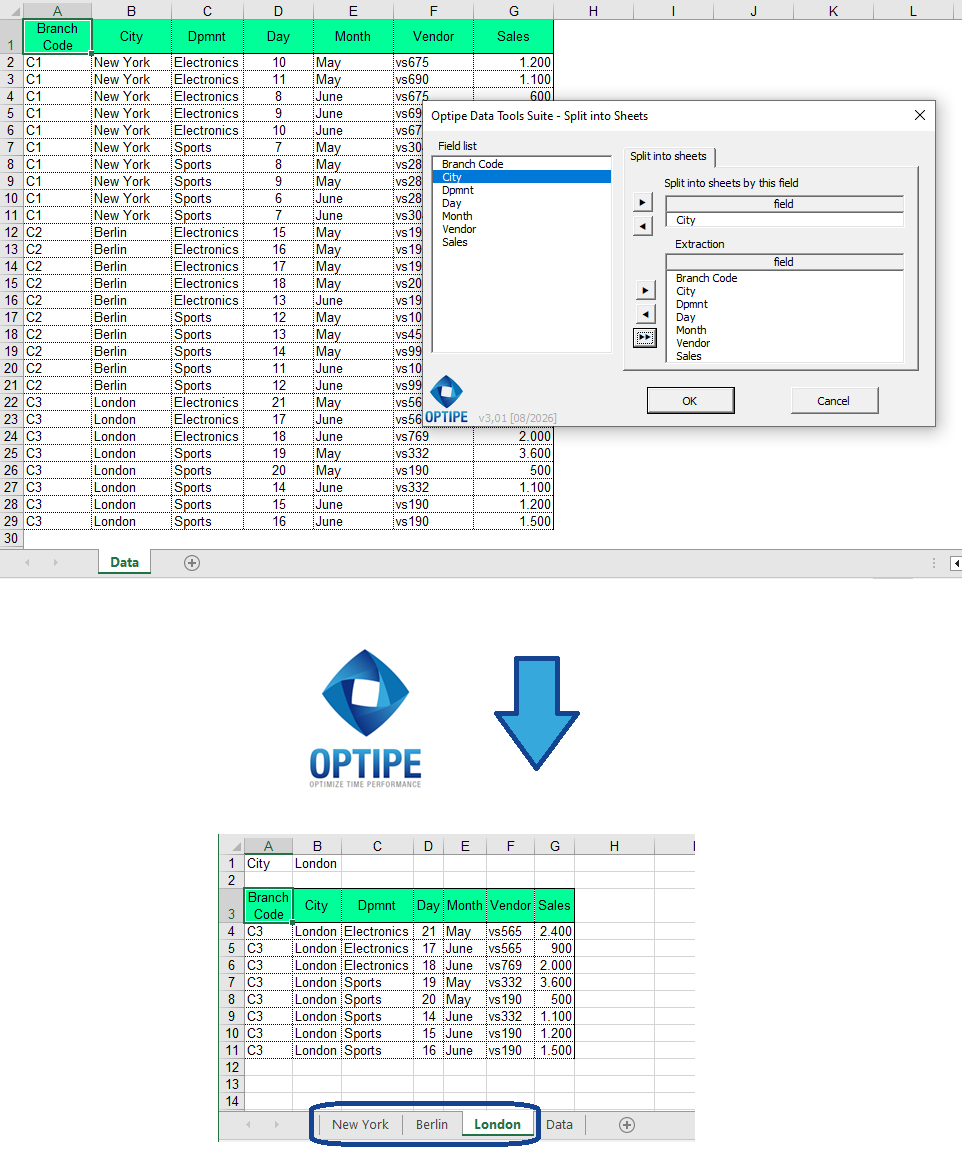
A master table can be automatically transformed into multiple individual worksheets.
💡 Result
Individual reports are created automatically, eliminating repetitive work and significantly reducing manual errors.
🚀 Much more than splitting a table into worksheets
Split into Sheets does much more than divide a table. It helps organize information, generate individual reports and prepare data for distribution and analysis.
- ✔ Create a worksheet for every unique value.
- ✔ Choose exactly which columns to include.
- ✔ Generate dozens or hundreds of worksheets automatically.
- ✔ Maintain the original table structure.
- ✔ Prepare information for reporting and distribution.
- ✔ Eliminate repetitive filtering and copy-paste operations.
🎥 See Split into Sheets in action
📧 Tip: Send individual worksheets automatically
💡 Next Step: Once separate worksheets have been generated for each branch office, customer, department or salesperson, you can automatically email them to each recipient using Optipe MultiMail, eliminating the need to prepare dozens of emails and attachments manually.
👉 Send Individual Excel Worksheets from Excel with Outlook | Optipe MultiMail
📌 Practical Business Scenarios
🏢 Branch Office Reports
Generate one worksheet per location and distribute reports to regional managers.
👨💼 Sales Teams
Create an individual worksheet for every salesperson directly from a master database.
👥 Customer Reporting
Prepare customer-specific reports without modifying the original data source.
📊 Departmental Information
Distribute information to departments while keeping each worksheet focused on its audience.
💡 Select Only the Information You Need
One of the key advantages of Split into Sheets is that you are not forced to include every column from the source table.
The application allows you to select exactly which fields should appear in the generated worksheets, making reports cleaner and easier to work with.
- Customized reports: include only the relevant columns.
- Multi-selection: choose consecutive or non-consecutive fields.
- Reduced complexity: remove unnecessary information.
- Improved privacy: share only the data each recipient needs.
⏱ Comparison: Manual Method vs. Split into Sheets
| Manual Method | Split into Sheets |
|---|---|
| Filter records manually. | Identify categories automatically. |
| Copy and paste data repeatedly. | Generate worksheets automatically. |
| Create worksheets one at a time. | Create dozens of worksheets instantly. |
| Higher probability of mistakes. | Maintains data integrity automatically. |
| Time-consuming process. | Designed for large-scale reporting. |
❓ Frequently Asked Questions
Can I split a table using any column?
Yes. You can use branch office, customer, department, salesperson, project or any other field.
Does the application create worksheets automatically?
Yes. A new worksheet is generated for each unique value found in the selected column.
Can I choose which columns to include?
Yes. You can select exactly which fields should appear in the generated worksheets.
Does it work with large datasets?
Yes. The application is designed to handle tables of any size.
Can I email the resulting worksheets?
Yes. The generated worksheets can be distributed automatically using Optipe MultiMail.
Do my data leave my computer?
No. All processing is performed locally.
📚 Related Articles
- Split Excel Table into Sheets in Seconds: App Data Tools Suite
- How to Consolidate Multiple Excel Worksheets into a Single Table
- How to Create an Excel File for Each Customer, Branch Office or Department
- How to Export Every Excel Worksheet to PDF Automatically
- How to Create a Master Excel Workbook from Multiple Files
- How to Manage Multiple Excel Worksheets in Seconds
Automate your Excel work and save hours every week
Data Tools Suite includes 18 applications to automate data management, tables and worksheets in Excel.
MultiMail lets you send personalized emails, documents and reports directly from Excel.
TRY IT. YOU'LL GET IT.
🚀 Download Freemium Version