Cleaning objects, shapes and hyperlinks allows you to prepare Excel workbooks for reporting, analysis and data transformation processes. Whenever information is copied from websites, external systems or inherited spreadsheets, unnecessary elements are often carried into the workbook.
Most users focus only on visible data, but worksheets frequently contain hyperlinks, images, buttons, shapes or broken named ranges that make files harder to maintain and sometimes generate performance or reference issues.
Imagine this situation: you copy statistical information from a website into Excel. The table appears correct, but hidden behind the data are dozens of hyperlinks, shapes and objects that are no longer needed.
Remove every object and hyperlink manually? ❌
Clean everything in seconds? ✅
Solve it in 2 clicks directly inside Excel. Forget broken formulas, manual errors, or endless prompts: Data Tools Suite automates table merging, splitting sheets, comparing lists, and cleaning data so you can focus on real analysis.
TRY IT. YOU'LL GET IT.
1-minute setup • No registration required • Fully functional
📋 Situations Where Cleaning Objects and Hyperlinks Creates Value
Web Data
Remove hyperlinks and embedded objects added when copying from websites.
Analytics
Prepare clean data for reporting, dashboards and KPIs.
Inherited Files
Clean old workbooks containing hidden objects and broken references.
Workbook Maintenance
Audit and manage internal workbook elements more efficiently.
⚡ Remove Technical Clutter Before Analyzing Data
The Clean Objects and Names application allows you to locate, select and remove shapes, hyperlinks and named ranges from an Excel workbook.
Depending on your needs, you can simply identify problematic elements or remove them through controlled processes that preserve the underlying data.
The result is a cleaner workbook that is easier to maintain and far better suited for reporting and analysis.
🔴 Traditional Method
- Search for shapes individually.
- Remove hyperlinks one at a time.
- Review named ranges manually.
- Investigate #REF! errors.
- Repeat the process worksheet by worksheet.
🟢 With Clean Objects and Names
- List objects, shapes and hyperlinks.
- Select elements in bulk.
- Remove shapes and objects.
- Remove hyperlinks while keeping the text.
- Clean broken named ranges.
📝 Example: Cleaning Data Copied from a Website
Suppose you copy a table of statistics from a website and paste it into Excel for reporting or analysis.
Although the information appears correct, the worksheet may contain hyperlinks, shapes, images, buttons and other elements that add no value to your analysis.
The application allows you to identify these elements, select them and remove them in bulk, leaving a clean worksheet ready to use.
It also provides tools to locate named ranges with broken references (#REF!), a common issue in inherited workbooks.
💡 Note: Hyperlinks can be removed while preserving the visible text, and broken named ranges can be safely reviewed and cleaned.
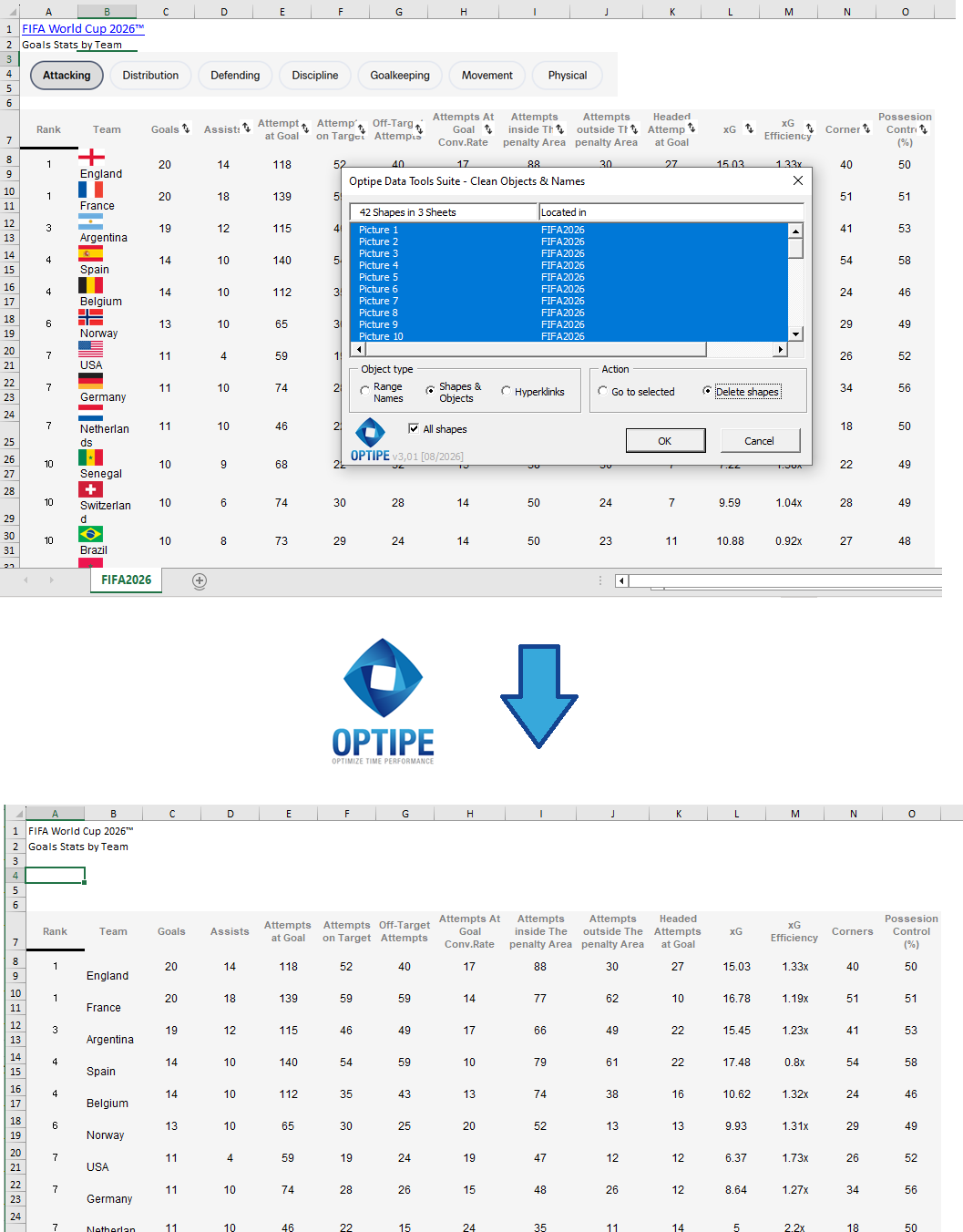
Objects, shapes and hyperlinks can be identified and removed to produce a cleaner workbook ready for reporting and analysis.
💡 Result
The workbook becomes cleaner, easier to maintain and better prepared for reporting, data cleaning and analysis.
🚀 Much More Than Removing Objects and Hyperlinks
Clean Objects and Names does more than remove unnecessary workbook elements. It helps prepare data for reporting, analysis, auditing and long-term workbook maintenance.
- ✔ Identify hidden shapes, objects and images.
- ✔ Remove hyperlinks while keeping the visible text.
- ✔ Detect named ranges containing broken references (#REF!).
- ✔ Reduce visual clutter in reports and dashboards.
- ✔ Clean inherited workbooks that have grown over time.
- ✔ Prepare worksheets for further data preparation and analysis.
🎥 Videos: Clean Objects, Names and Hyperlinks in Excel
Learn how to locate and remove shapes, hyperlinks and broken named ranges to keep Excel workbooks clean and optimized.
1. How to remove shapes, objects and hyperlinks in bulk:
2. How to detect and clean broken named ranges:
📌 Practical Use Cases
🌐 Data Copied from Websites
Remove hyperlinks, buttons, images and embedded objects automatically added when importing information from web pages.
📊 Reports and Dashboards
Eliminate unnecessary visual elements before distributing management reports and dashboards.
🗂️ Inherited Workbooks
Clean old Excel files containing hidden objects, hyperlinks and broken references.
⚙️ Technical Audits
Review and manage workbook elements that affect quality, maintenance and performance.
💡 Clean Data Also Means Removing Unnecessary Elements
Data quality depends not only on the visible information but also on eliminating hidden elements that complicate analysis and workbook maintenance.
- Shapes: buttons, images and inserted objects.
- Hyperlinks: links automatically added when copying content from the web.
- Named Ranges: workbook definitions that may contain broken references.
- Hidden Objects: elements that remain in a workbook even when no longer needed.
A cleaner workbook is easier to maintain, less error-prone and more suitable for business analysis.
⏱ Comparison: Manual Method vs. Clean Objects and Names
| Manual Method | Clean Objects and Names |
|---|---|
| Search for elements individually. | Centralized list of workbook elements. |
| Remove hyperlinks manually. | Bulk cleanup while preserving text. |
| Inspect named ranges one by one. | Fast detection of broken references. |
| Difficult to locate hidden objects. | Controlled selection and removal. |
| Time-consuming for large files. | Fast and scalable cleanup process. |
❓ Frequently Asked Questions
What happens when a hyperlink is removed?
The hyperlink is removed, but the visible text remains unchanged.
Can I remove only shapes and keep everything else?
Yes. Shapes, hyperlinks and named ranges can be managed independently.
What are broken named ranges?
They are named ranges pointing to cells or ranges that no longer exist, often generating #REF! errors.
Is this useful for data copied from websites?
Yes. This is one of the most common use cases because web data often includes hyperlinks and unwanted objects.
Can I select elements without deleting them?
Yes. The application can also be used for auditing and locating workbook elements.
Does my data leave my computer?
No. All processing takes place locally.
📚 Related Articles
Automate your Excel work and save hours every week
Data Tools Suite includes 18 applications to automate data management, tables and worksheets in Excel.
MultiMail lets you send personalized emails, documents and reports directly from Excel.
TRY IT. YOU'LL GET IT.
🚀 Download Freemium Version