Most Excel problems are not caused by analysis itself, but by poor-quality data. Hidden spaces, inconsistent text, special characters, accents, and numbers stored as text can silently break formulas, reports, PivotTables, and data matching processes.
These issues are extremely common when working with ERP exports, CRM databases, CSV files, accounting systems, web data, and spreadsheets maintained by multiple users. Everything may appear correct at first glance, but small inconsistencies can dramatically affect the accuracy of your analysis.
Imagine this scenario: you receive customer, supplier, or product data from several business systems. Some records contain hidden spaces, others use accented characters, and several numeric fields have been imported as text. The report looks fine, but the results don't add up.
Manually searching for every hidden problem? ❌
Standardizing and cleaning the entire dataset before analysis? ✅
Still doing this manually? Merging tables, comparing lists, cleaning data, and consolidating files can take hours each week. Data Tools Suite automates repetitive tasks in 2 clicks inside Excel—no complex formulas or endless prompts—so you can spend your time analyzing.
TRY IT. YOU'LL GET IT.
🔍 Common Data Cleaning Problems in Excel
Inconsistent Text
Mixed capitalisation, accents, and extra spaces can create records that appear different even when they refer to the same entity.
Data matching and reporting become less reliable.
Numbers Stored as Text
Excel displays the values correctly, but formulas, calculations, and PivotTables may not process them properly.
Totals and calculations can become inaccurate.
Hidden Characters
Imported files often contain invisible spaces, duplicated spaces, or special characters that are difficult to detect manually.
Lookups and comparisons may fail unexpectedly.
Repetitive Cleanup Work
The same issues appear every time a new export, CSV file, or report is received.
Valuable time is wasted on preparation instead of analysis.
Want to clean and standardize text data in seconds? Discover the Clean & Transform Text App →
⚡ Clean and Standardize Data Before Analysis
The Clean & Transform Text application included with Data Tools Suite combines the most common text-cleaning and normalization tasks into a single tool.
You can remove hidden spaces, convert numbers stored as text, eliminate accents, replace unwanted characters, and normalize inconsistent records before starting your analysis.
The goal is simple: prepare clean, reliable data that is ready for reporting, dashboards, data matching, imports, and business intelligence processes.
🔴 Traditional Method
- Combine multiple Excel functions.
- Search for hidden spaces manually.
- Create helper columns.
- Fix records one by one.
- Repeat the process for every file.
🟢 Clean & Transform Text
- Select the data range.
- Choose the desired cleaning actions.
- Apply changes in seconds.
- Start working with clean data immediately.
📝 Example: Preparing Data Before Matching Records or Building Reports
Imagine receiving customer, supplier, or inventory information from multiple systems. Some users enter accented names, some do not. Several records contain leading spaces, while others include hidden characters copied from external sources.
At first glance everything looks correct. However, when you start matching records or building reports, formulas fail to identify some of the data correctly.
Before performing any serious analysis, the dataset should be standardized to ensure that every record follows the same rules.
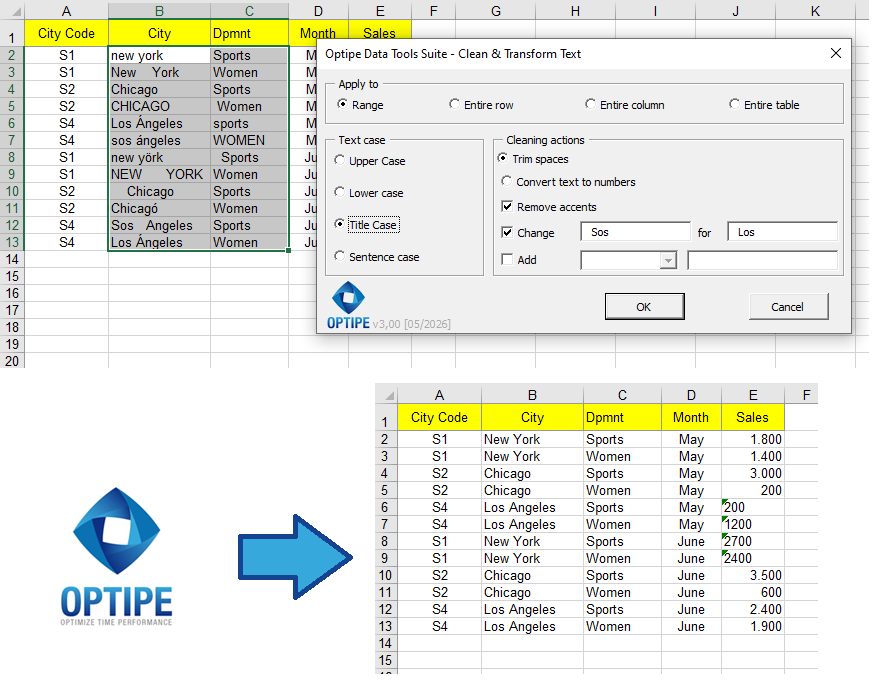
Reliable analysis starts with clean and standardized data.
💡 Result
Your data becomes consistent, reliable, and ready for analysis, reporting, imports, business systems, and data-matching operations.
💡 Less Troubleshooting: Solving data quality issues before analysis prevents hours of debugging reports and formulas later.
💡 Quick 1-click action: You can also use the direct buttons in OneClic (included in the Optipe ribbon) to convert text to UPPERCASE, lowercase, Title Case, or convert text to numbers instantly. View OneClic in detail →
💡 Work Safely: If the result is not what you expected, simply use Ctrl + Z to undo the changes.
🚀 Everything You Can Do with Clean & Transform Text
Removing spaces and fixing text inconsistencies is only part of what the Clean & Transform Text application can do.
- ✔ Remove hidden, leading, trailing, and duplicate spaces.
- ✔ Convert numbers stored as text into real numbers.
- ✔ Remove accents and special characters.
- ✔ Convert text to UPPERCASE, lowercase, Title Case, or Sentence Case.
- ✔ Replace words, symbols, and text fragments automatically.
- ✔ Add prefixes and suffixes to thousands of records.
🎥 Video: Clean and Standardize Text Data in Excel
See how to eliminate formatting inconsistencies and prepare Excel files for reporting and analysis in just a few clicks.
📌 Common Business Use Cases
Data cleaning and standardization are essential steps before reporting, analysis, business intelligence projects, and data imports.
🏢 ERP Exports
Fix hidden spaces, inconsistent records, and numbers stored as text before generating operational or financial reports.
📄 CSV Files
Normalize imported data before loading it into dashboards, databases, or reporting systems.
🌐 Web Data
Clean content copied from websites and remove unwanted characters, inconsistent formatting, and special symbols.
📊 Data Matching and Analysis
Prepare records before using XLOOKUP, PivotTables, reconciliation processes, or data consolidation tasks.
⚡ Comparison: Traditional Method vs. Clean & Transform Text
| Traditional Method | Clean & Transform Text |
|---|---|
| Combine multiple Excel functions. | One interface for all cleaning tasks. |
| Find hidden issues manually. | Bulk correction of inconsistencies. |
| Create helper columns. | Work directly on your data. |
| Time-consuming repetitive tasks. | Automated in just a few clicks. |
| Higher risk of mistakes. | Consistent and repeatable results. |
❓ Frequently Asked Questions
Why do lookups fail even when the data appears identical?
Hidden spaces, invisible characters, accents, and inconsistent formatting often prevent Excel from matching records correctly.
Can the application remove duplicate spaces and hidden spaces?
Yes. It can remove leading, trailing, and duplicated spaces within text values.
Can I convert thousands of numbers stored as text?
Yes. Numeric conversion can be applied to entire datasets in a single operation.
Why would I remove accents from text?
Removing accents helps standardize records across systems that store the same information using different character sets.
Is this useful before importing data into another system?
Absolutely. Data normalization is often required before migrations, imports, integrations, and reporting processes.
Do I need advanced Excel skills?
No. Everything is performed through a simple visual interface.
⚡ Quick Data Preparation with OneClic
For common cleanup tasks, OneClic provides fast shortcuts that save even more time.
- ✔ Convert Text to Number.
- ✔ Select Duplicate Cells.
- ✔ Select Cells with Errors.
- ✔ Select Blank Cells.
- ✔ Fill Blank Cells.
- ✔ Apply common text transformations.
📚 Related Articles
If you regularly prepare and clean business data, these articles may also be useful.
Automate your Excel work and save hours every week
Data Tools Suite includes 18 applications to automate data management, tables and worksheets in Excel.
MultiMail lets you send personalized emails, documents and reports directly from Excel.
TRY IT. YOU'LL GET IT.
🚀 Download Freemium Version