One of the most common problems when preparing reports and business data is inconsistent text formatting. It is very common to find customer names, branches, products, departments, or reports that mix UPPERCASE, lowercase, Title Case, and inconsistent capitalization within the same column.
This usually happens when data comes from different users, ERP systems, CRM platforms, web forms, spreadsheets, or imported files. The information may be technically correct, but its presentation looks inconsistent and unprofessional.
Imagine this situation: you are preparing a management report and find records such as NEW YORK HQ, New York HQ, new york hq, and NEW york HQ. All represent the same location, but visually they appear different.
Manually fixing hundreds of records one by one? ❌
Standardizing an entire dataset in seconds? ✅
Still doing this manually? Merging tables, comparing lists, cleaning data, and consolidating files can take hours each week. Data Tools Suite automates repetitive tasks in 2 clicks inside Excel—no complex formulas or endless prompts—so you can spend your time analyzing.
TRY IT. YOU'LL GET IT.
🔍 Changing Text Case Manually in Excel
Text Functions
Excel provides functions such as UPPER(), LOWER(), and PROPER() to transform text formatting.
Most workflows require helper columns and additional cleanup steps.
Copy and Paste Values
Once formulas are applied, users often need to replace the original data manually.
This adds extra steps and increases the risk of mistakes.
Inconsistent Reporting
Customer names, products, and business units may appear in multiple formats within the same report.
Reports look less professional and become harder to review.
Repeated Work
The same task must be performed every time new files arrive.
Hours spent on formatting instead of analysis.
Want to change text case and formatting without formulas? Discover the Clean & Transform Text App →
⚡ Standardize Text Formatting with Clean & Transform Text
The Clean & Transform Text application included in Data Tools Suite allows you to convert large amounts of data to UPPERCASE, lowercase, Title Case, or Sentence Case in just a few clicks.
Instead of building formulas and replacing results manually, formatting changes are applied directly to the selected data.
This is particularly useful for customer databases, product catalogs, ERP exports, CRM records, supplier lists, branch directories, and management reports.
🔴 Traditional Method
- Create text formulas.
- Copy formulas down entire columns.
- Review results.
- Copy and paste values.
- Delete helper columns.
🟢 Clean & Transform Text
- Select the data.
- Choose the desired format.
- Click Apply.
- Get immediate results.
📝 Example: Standardizing Branch Names Before Building a Report
Imagine receiving branch information from multiple departments or regional offices. Each person uses a different format when entering location names.
As a result, your dataset contains records such as NEW YORK HQ, New York HQ, new york hq, and NEW york HQ.
Although all entries refer to the same location, inconsistent formatting creates confusion and reduces the visual quality of your reports.
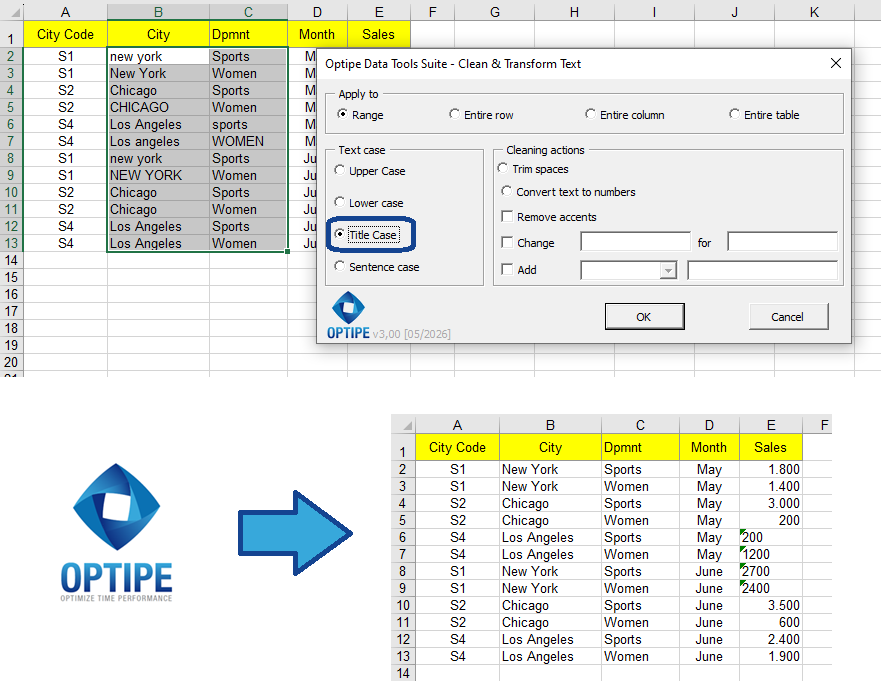
Consistent text formatting improves reporting quality and makes data easier to analyze.
💡 Result
Your entire dataset is standardized in seconds, producing a consistent and professional appearance across reports, dashboards, and business documents.
💡 Professional Presentation: Consistent text formatting improves readability and helps stakeholders trust the quality of your data.
💡 OneClic: If you only need quick access to UPPERCASE, lowercase, or Title Case formatting, several shortcuts are available directly within OneClic.
💡 Work Safely: If the result is not what you expected, simply use Ctrl + Z to undo the transformation immediately.
🚀 Discover Everything You Can Do with Clean & Transform Text
Changing text case is only one of the many features available in the Clean & Transform Text application included with Data Tools Suite.
- ✔ Convert text to UPPERCASE, lowercase, Title Case, or Sentence Case.
- ✔ Remove extra spaces and hidden characters.
- ✔ Replace words, symbols, and text fragments in seconds.
- ✔ Remove accents and normalize imported data.
- ✔ Convert numbers stored as text into real numeric values.
- ✔ Add prefixes and suffixes to thousands of records.
🎥 Video: Change Uppercase, Lowercase and Text Formatting
See how to standardize thousands of records and create consistent business reports with just a few clicks.
📌 Common Business Use Cases
Consistent text formatting is essential for professional reporting, data quality, and business communication.
👥 Customer Databases
Standardize customer and employee names to create cleaner datasets and professional reports.
🏢 Branch Directories
Ensure branch names and business units follow a consistent format across all departments.
📦 Product Catalogs
Maintain consistent product descriptions, categories, and brand names across systems.
📊 Executive Reports
Improve readability and create a more professional presentation for stakeholders and management teams.
⚡ Additional Formatting Functions Included with Data Tools Suite
Besides Excel's standard functions, Data Tools Suite includes additional text-formatting functions that can help automate repetitive formatting tasks.
- Sentence() → Converts text to sentence case automatically.
- Title() → Converts text to title case automatically.
- TextFrom() and TextTo() → Extract portions of text using delimiters.
- RConcat() → Join multiple values from a range into a single text string.
⏱ Comparison: Traditional Method vs. Clean & Transform Text
| Traditional Method | Clean & Transform Text |
|---|---|
| Create helper columns and formulas. | Apply formatting directly to the data. |
| Copy formulas across thousands of rows. | Bulk processing in seconds. |
| Copy and paste values manually. | No additional steps required. |
| Higher chance of mistakes. | Consistent and repeatable results. |
| Repeated formatting work. | Fast, automated standardization. |
❓ Frequently Asked Questions
What is the difference between UPPERCASE, lowercase, Title Case, and Sentence Case?
Each format follows a different capitalization standard. The right choice depends on how your organization presents names, products, locations, and reports.
Can I apply formatting to entire columns?
Yes. The application works with selected ranges, entire columns, and large datasets.
Do I need to create formulas?
No. All transformations are performed through the application's interface.
Is this useful for ERP and CRM exports?
Absolutely. It is ideal for normalizing imported data from business systems before reporting or analysis.
Can I also remove accents and extra spaces?
Yes. The application includes multiple cleaning and normalization options in addition to text formatting.
Is there an even faster option for common tasks?
Yes. Several common formatting actions are available directly from OneClic.
⚡ Quick Formatting with OneClic
If text formatting is part of your daily work, OneClic provides instant access to some of the most frequently used actions.
- ✔ UPPERCASE
- ✔ lowercase
- ✔ Title Case
- ✔ Select Duplicates
- ✔ Convert Text to Number
- ✔ Fill Blank Cells
📚 Related Articles
If you regularly prepare and standardize business data, these articles may also be useful.
Automate your Excel work and save hours every week
Data Tools Suite includes 18 applications to automate data management, tables and worksheets in Excel.
MultiMail lets you send personalized emails, documents and reports directly from Excel.
TRY IT. YOU'LL GET IT.
🚀 Download Freemium Version