Many business datasets already contain the information you need, but it is buried inside larger text strings. This situation is common in ERP exports, CRM databases, imported files, product catalogs, customer records, and administrative systems.
Customer names, departments, locations, product codes, and identifiers are often stored together inside a single cell. Before the data can be analyzed, filtered, or reported, the relevant information must first be extracted.
Imagine this situation: you receive data containing values such as Lastname,John Michael, 1001|Sales|Chicago, or
Create complex formulas every time a new format appears? ❌
Extract exactly the information you need with specialized functions? ✅
Still doing this manually? Merging tables, comparing lists, cleaning data, and consolidating files can take hours each week. Data Tools Suite automates repetitive tasks in 2 clicks inside Excel—no complex formulas or endless prompts—so you can spend your time analyzing.
TRY IT. YOU'LL GET IT.
🔍 Extracting Information Manually in Excel
Combined Formulas
Extracting text often requires combining functions such as LEFT(), RIGHT(), MID(), FIND(), SEARCH(), TEXTBEFORE(), or TEXTAFTER().
Formulas quickly become difficult to build and maintain.
Different Formats
Every delimiter, separator, or text structure typically requires a different formula.
Solutions become harder to reuse across files.
Version Differences
Some modern text functions are only available in recent versions of Microsoft 365.
Not every organization uses the same Excel version.
Repeated Tasks
The same extraction process is often repeated every time a new export arrives.
Time spent preparing data rather than analyzing it.
⚡ Specialized Functions for Text Extraction
Data Tools Suite includes additional text functions designed specifically for extracting information from structured text strings.
These functions are particularly useful when working with ERP exports, identifying codes, customer records, email addresses, inventory lists, product catalogs, and other business datasets.
Instead of building long nested formulas, you can use dedicated functions such as TextFrom(), TextTo(), SinceWord(), ToWord(), Words(), and RConcat().
📝 Example: Extracting Customer Information from a Single Cell
Suppose your customer list contains names and surnames separated by a delimiter inside one cell.
Instead of manually splitting the data or creating complex formulas, you can extract only the information you need.
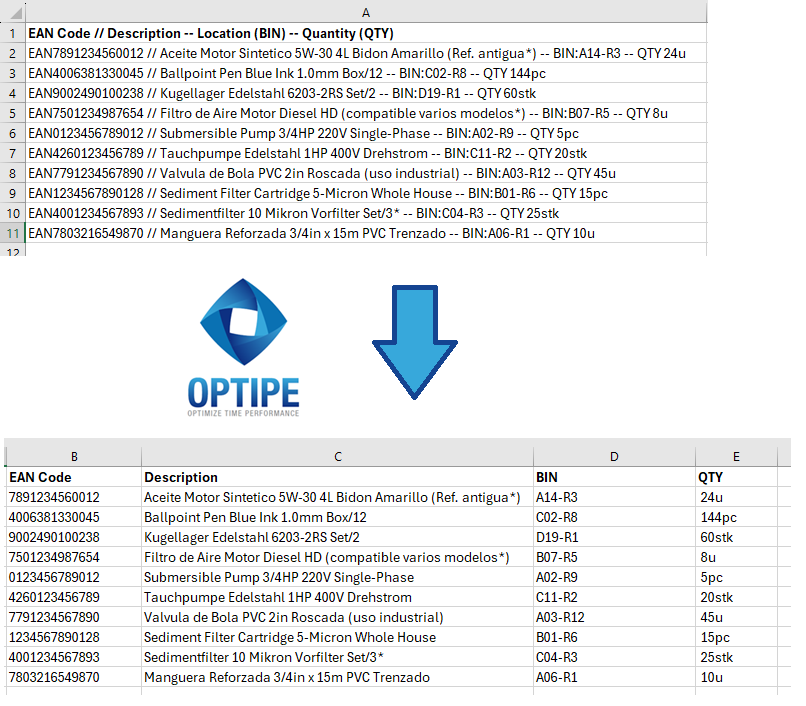 Extracting names, codes, and structured information from text fields.
 1. Extract EAN:
2. Extract Description:
3. Get BIN:
4. QTY:
💡 Result
The information becomes immediately available for segmentation, filtering, reporting, and analysis without building complicated formulas for every new file.
💡 Microsoft 365: If you use Microsoft 365, you may also have access to modern functions such as TEXTBEFORE() and TEXTAFTER() for some text extraction scenarios. These functions are not available in many corporate installations based on Excel 2016, Excel 2019 and the perpetual-license edition of Excel 2021. Data Tools Suite provides similar capabilities focused on productivity and compatibility across different Excel environments.
🚀 More Text Functions Included with Data Tools Suite
Extracting information from text is only one of the many capabilities available in the Clean & Transform Text application.
- ✔ Extract text before or after delimiters.
- ✔ Retrieve specific words from a sentence.
- ✔ Extract text starting from a selected word.
- ✔ Extract text up to a selected word.
- ✔ Convert text formatting automatically.
- ✔ Concatenate entire ranges into a single value.
🎥 Video: Working with Text in Excel
See how to manipulate and transform text records automatically using Clean & Transform Text.
📌 Common Business Use Cases
Text extraction functions are useful whenever important information is embedded inside larger strings and needs to be isolated before reporting or analysis.
👥 Customer Databases
Extract names, surnames, customer IDs, or segmentation fields from imported customer records.
🏢 ERP and Administrative Systems
Retrieve departments, locations, projects, cost centers, or codes embedded within exported data.
📧 Email Addresses
Extract usernames, domains, or specific sections from email-related data.
📦 Product Catalogs
Separate product codes, categories, brands, and descriptions stored inside the same field.
⚡ Additional Text Functions Included
Data Tools Suite includes specialized functions designed to simplify text manipulation and extraction tasks.
- TextFrom() → Extract text after a delimiter.
- TextTo() → Extract text before a delimiter.
- SinceWord() → Extract text beginning with a specific word number.
- ToWord() → Extract text up to a specific word number.
- Words() → Count the words contained in a text string.
- RConcat() → Concatenate entire ranges into a single text value.
💡 Example: Concatenate an Entire Range
Sometimes the challenge is not extracting information, but combining multiple values into a single string for reporting, exporting, or integration purposes.
This function combines all values in a range using the separator you choose, making it ideal for exports, summaries, integrations, and reporting.
💡 Example: Convert Numbers into Words
Data Tools Suite also includes a useful function for converting numeric values into written text.
Result:
⏱ Comparison: Traditional Formulas vs. Specialized Functions
| Traditional Formulas | Data Tools Suite Functions |
|---|---|
| Multiple nested functions. | Purpose-built functions. |
| Harder to read and maintain. | Clear and descriptive formulas. |
| Different formulas for every scenario. | Reusable business-oriented functions. |
| More time spent developing formulas. | Faster implementation and maintenance. |
❓ Frequently Asked Questions
Are these functions similar to TEXTAFTER() and TEXTBEFORE() in Microsoft 365?
Yes. Functions such as TextFrom() and TextTo() allow you to extract text using delimiters in a very similar way.
Can I use them with ERP exports and imported files?
Yes. They are particularly useful for structured business data coming from ERP, CRM, accounting, and administrative systems.
Can I use different delimiters?
Yes. Commas, pipes, hyphens, spaces, and other separators can be used depending on the structure of your data.
What is RConcat used for?
It concatenates every value within a selected range into a single text string using the separator of your choice.
Do I need advanced Excel knowledge?
No. These functions are designed to simplify tasks that normally require long and complex formulas.
Are there additional functions available?
Yes. Data Tools Suite includes more than 30 specialized functions for Excel productivity and automation.
💡 Need More Text Functions?
Many of the functions included in Data Tools Suite were developed in response to real-world requests from professionals working with large Excel datasets.
Is there a text function you would like to have in Excel? Let us know. Future versions of Data Tools Suite are shaped by user feedback and real business needs.
📚 Related Articles
If you regularly clean, analyze, and prepare text data in Excel, these resources may be useful.
Automate your Excel work and save hours every week
Data Tools Suite includes 18 applications to automate data management, tables and worksheets in Excel.
MultiMail lets you send personalized emails, documents and reports directly from Excel.
TRY IT. YOU'LL GET IT.
🚀 Download Freemium Version