One of the most common tasks when working with Excel tables is obtaining a list of unique records. Whether you need a list of customers, branches, products or departments, removing duplicate combinations manually can quickly become time-consuming.
Although Excel offers tools such as Remove Duplicates, Advanced Filter and dynamic array functions, these methods often require several steps and may not preserve the structure you need for further analysis.
With the Extract Data application included in Data Tools Suite, you can automatically generate a new worksheet containing every unique combination of the selected fields while preserving the original data.
Manually removing duplicates every time? ❌
Generate a clean list of unique records automatically. ✅
Still doing this manually? Merging tables, comparing lists, cleaning data, and consolidating files can take hours each week. Data Tools Suite automates repetitive tasks in 2 clicks inside Excel—no complex formulas or endless prompts—so you can spend your time analyzing.
TRY IT. YOU'LL GET IT.
🔎 How to Extract Unique Records from an Excel Table Manually
Remove Duplicates
Excel allows duplicate values to be removed directly from a table.
The original table is modified, making this option unsuitable in many situations.
Advanced Filter
You can copy unique records to another location using Excel's Advanced Filter.
The process requires multiple steps and is not always convenient for recurring tasks.
Dynamic Array Functions
Modern versions of Excel include functions such as UNIQUE().
These functions are not available in every Excel version and may require additional formulas.
Want to extract data quickly and easily? Discover the Extract Data App →
⚡ Extract Unique Records Automatically with Extract Data
The Extract Data application makes this process much simpler. Just select the source table and choose the fields that will define the unique combinations.
In the Extraction section, simply add the fields you want to include without assigning any Analysis Function. The application automatically creates one record for every unique combination found.
🔴 Traditional Method
- Configure filters or formulas.
- Review duplicate combinations.
- Repeat the process whenever data changes.
🟢 Using Extract Data
- Select the table.
- Choose the fields.
- Click OK.
- A new worksheet containing unique records is generated automatically.
📝 Example: Extract Unique Records from an Excel Table
In this example, we have a sales table containing information from multiple branches. The goal is to generate a new table that contains only the unique combinations of Branch Code and Branch Name.
To do this, we simply add these two fields to the Extraction section without assigning any Analysis Function. Since no calculation is required, the application automatically generates one record for each unique combination found in the source table.
After clicking OK, a new worksheet is created containing the unique records while preserving the formatting of the original Excel table.
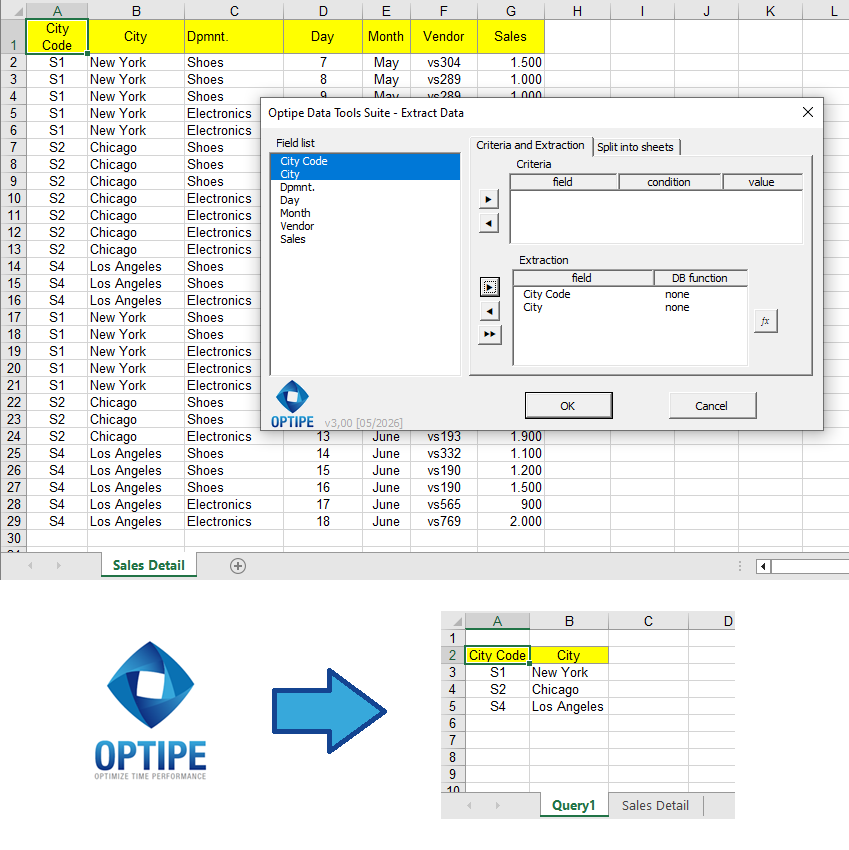
Extract Data creates a new worksheet containing every unique combination of the selected fields.
💡 Result
Within seconds you obtain a clean list of unique records that can be used for reports, validations, mailing lists or additional analysis, without modifying the original table.
🚀 Extract Data Does Much More Than Extract Unique Records
Besides generating unique records, the application helps automate several common Excel data extraction tasks.
- ✔ Extract unique records.
- ✔ Create summary tables using Analysis Functions.
- ✔ Extract records matching one or more criteria.
🎥 See Extract Data in action
📌 Practical Uses for Unique Records
Creating unique record lists is useful in many everyday Excel tasks.
🏢 Branch Lists
Generate a unique list of company branches from sales or transaction data.
👥 Customer Lists
Create a clean customer list before exporting or analyzing your data.
📦 Product Catalogs
Extract unique products from inventory or sales records.
📊 Reporting
Build summary reports using clean lists without duplicate combinations.
❓ Frequently Asked Questions
Does the original Excel table change?
No. Extract Data always creates a new worksheet while leaving the original data untouched.
Can I select more than one field?
Yes. The application returns every unique combination of the selected fields.
Does it preserve the table formatting?
Yes. The generated worksheet keeps the formatting of the original Excel table.
Can I use the results for additional analysis?
Absolutely. The extracted table can be used for reports, PivotTables, charts or any other Excel operation.
Do I need formulas?
No. Everything is done through the Extract Data interface without writing formulas or VBA.
📚 Related Articles
If you frequently work with Excel tables, these articles will help you automate even more data extraction tasks.
Automate your Excel work and save hours every week
Data Tools Suite includes 18 applications to automate data management, tables and worksheets in Excel.
MultiMail lets you send personalized emails, documents and reports directly from Excel.
TRY IT. YOU'LL GET IT.
🚀 Download Freemium Version