Filtering data is one of the most common Excel tasks. However, there are many situations where you don't simply want to filter a table—you need to create a new worksheet containing only the records that meet specific conditions.
Although Excel offers AutoFilter, Advanced Filter and formulas for this purpose, these methods often require several manual steps and become repetitive when performed frequently.
With the Extract Data application included in Data Tools Suite, you can automatically extract records that satisfy one or multiple criteria while preserving the original data and creating a new worksheet ready for further analysis.
Applying filters every time you need specific records? ❌
Extract exactly the records you need automatically. ✅
Still doing this manually? Merging tables, comparing lists, cleaning data, and consolidating files can take hours each week. Data Tools Suite automates repetitive tasks in 2 clicks inside Excel—no complex formulas or endless prompts—so you can spend your time analyzing.
TRY IT. YOU'LL GET IT.
🔎 How to Extract Excel Records Using Criteria Manually
AutoFilter
Excel lets you filter records that meet specific conditions.
Filtered data remains in the original worksheet and often requires copying to another location.
Advanced Filter
Advanced Filter can copy matching records to another location.
The process requires several configuration steps and is not ideal for repetitive work.
Formulas
Functions can also retrieve records that satisfy conditions.
They usually require complex formulas and become difficult to maintain as data grows.
Want to extract data quickly and easily? Discover the Extract Data App →
⚡ Extract Excel Records Matching One or More Criteria Automatically
Extract Data makes this task extremely simple. Select the source table, define one or more criteria, and the application automatically generates a new worksheet containing only the matching records.
You can define criteria for one field or combine multiple conditions, making it easy to extract exactly the information you need without modifying the original table.
🔴 Traditional Method
- Create filters manually.
- Review the results.
- Copy matching records.
- Repeat whenever data changes.
🟢 Using Extract Data
- Select the table.
- Define one or more criteria.
- Click OK.
- A new worksheet is created containing only the matching records.
📝 Example: Extract Records That Match Specific Criteria
In this example, we'll extract sales records that match specific conditions from a larger Excel table. Instead of filtering the original worksheet, Extract Data creates a completely new table containing only the records that satisfy the selected criteria.
Simply define one or more conditions in the Criteria section, choose the fields you want to include in the result, and click OK. The application processes the entire table and generates a new worksheet containing only the matching records.
This approach is especially useful when you frequently need reports based on departments, branches, products, salespeople, dates or any other business criteria.
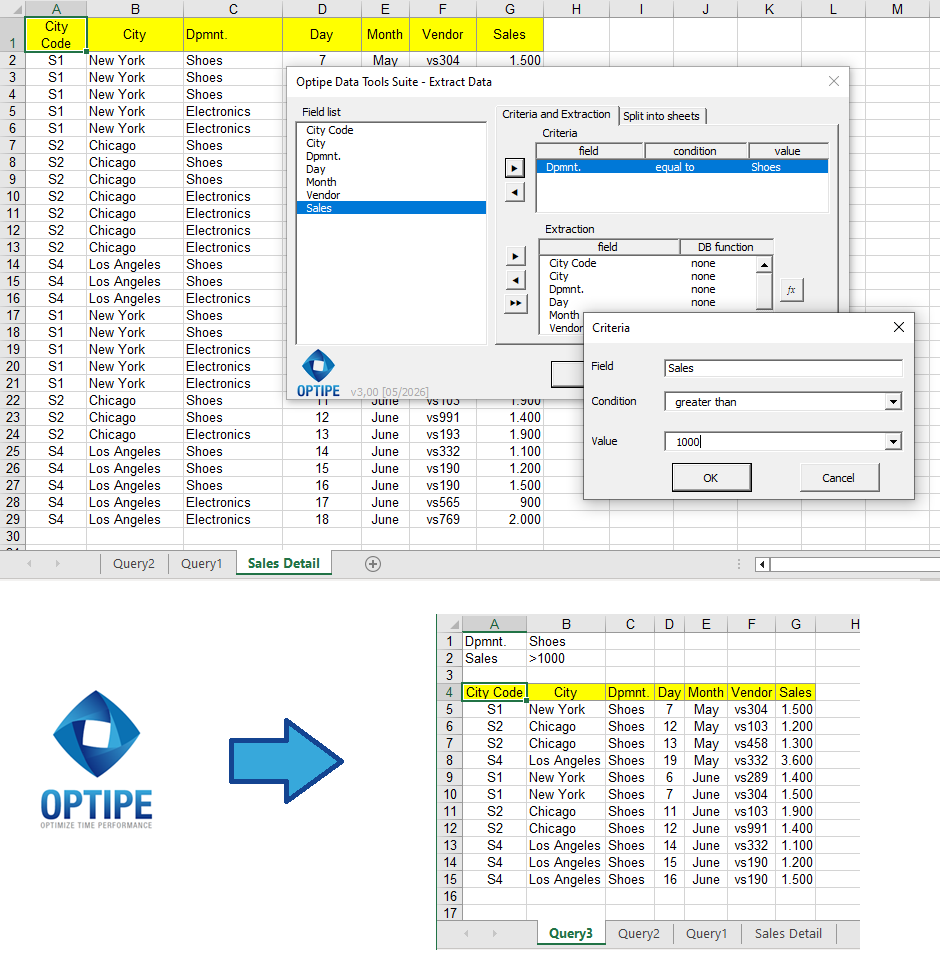
Extract Data creates a new worksheet containing only the records that satisfy the selected criteria.
💡 Result
Within seconds you obtain a clean Excel table containing only the records you need, making reporting, analysis and data validation much faster and more reliable.
🚀 Extract Data Does Much More Than Filter Excel Data
The application automates several common Excel data extraction tasks that normally require multiple manual steps.
- ✔ Extract unique records.
- ✔ Create summary tables using Analysis Functions.
- ✔ Extract records matching one or more criteria.
🎥 See Extract Data in action
📌 Practical Uses for Criteria-Based Data Extraction
Extracting records based on specific criteria is useful in many everyday Excel tasks.
🏢 Branch Reports
Generate reports for one or more branches without filtering the original worksheet.
📅 Date Ranges
Extract transactions that fall within specific dates or reporting periods.
👥 Customer Analysis
Retrieve records for selected customers, regions or sales representatives.
📊 Operational Reports
Create recurring reports automatically using one or multiple filtering criteria.
❓ Frequently Asked Questions
Can I define more than one criterion?
Yes. Extract Data allows you to combine multiple criteria to retrieve exactly the records you need.
Does the original worksheet change?
No. The source data remains unchanged. A new worksheet is created with the extracted records.
Can I extract only selected columns?
Yes. You decide which fields appear in the resulting table.
Can I reuse the extracted data?
Absolutely. The generated worksheet behaves like any standard Excel table and can be filtered, sorted, charted or exported.
Do I need formulas or VBA?
No. Everything is configured through the Extract Data interface without writing formulas or programming code.
📚 Related Articles
Continue exploring more ways to automate Excel data extraction.
Automate your Excel work and save hours every week
Data Tools Suite includes 18 applications to automate data management, tables and worksheets in Excel.
MultiMail lets you send personalized emails, documents and reports directly from Excel.
TRY IT. YOU'LL GET IT.
🚀 Download Freemium Version