Duplicate records are one of the most common problems in Excel. Repeated customers, duplicated products, multiple invoice registrations or imported data from different systems can distort reports and create inconsistencies.
Manually reviewing large spreadsheets for duplicates can be slow and unreliable. In many situations you don't want to remove all duplicated values immediately. First you need to identify them, validate them and decide what action to take.
Imagine this scenario: you receive an export from an ERP or CRM system and discover that customer records appear multiple times. How do you quickly identify duplicates while preserving the original record?
Review duplicate records manually? ❌
Locate and manage duplicates automatically? ✅
Still doing this manually? Merging tables, comparing lists, cleaning data, and consolidating files can take hours each week. Data Tools Suite automates repetitive tasks in 2 clicks inside Excel—no complex formulas or endless prompts—so you can spend your time analyzing.
TRY IT. YOU'LL GET IT.
🔍 Common problems caused by duplicate records
Duplicate Customers
Customer databases containing multiple records for the same person or company.
Duplicate Products
Repeated item codes affecting inventory analysis.
Repeated Documents
Invoices, transactions or records entered more than once.
Distorted Reports
KPIs, totals and statistics become unreliable.
⚡ Identify duplicates and first occurrences automatically
The Select and Filter Cells application allows you to find duplicate records using different criteria. You can identify first occurrences, all repeated values, or records beginning with the second occurrence.
This makes it easier to clean customer databases, review ERP exports, audit transactions and prepare data for reporting.
You can also combine the search with options such as Select entire row, Add mark in last column and Add mark in last column and Filter.
🔴 Traditional Approach
- Sort and review records manually.
- Create helper columns.
- Build temporary filters.
- Delete duplicates one by one.
- Risk overlooking repeated records.
🟢 With Select and Filter Cells
- Choose a duplicate criterion.
- Select matching records instantly.
- Copy, filter or remove duplicates.
- Work with complete records.
📝 Example: Finding duplicate records in a database
The same dataset can be analyzed using different duplicate criteria. Sometimes you need to preserve the first record, while in other situations you may want to review every repeated value.
Different criteria provide different auditing perspectives while keeping the original data intact.
💡 Note: This example intentionally contains multiple duplicate scenarios to demonstrate different record management techniques. If your actual database looks like this, this tool may quickly become one of your favorites. 😄
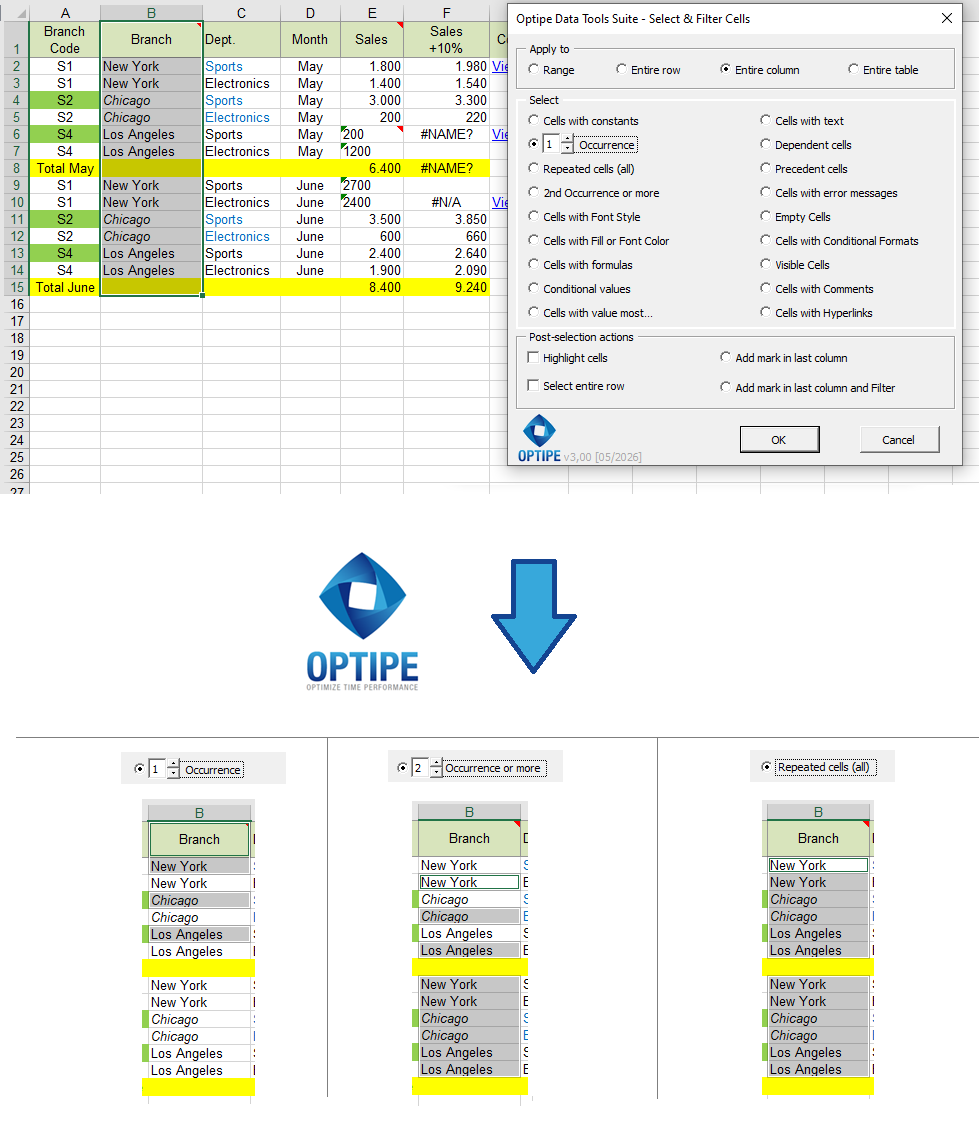
The same worksheet can be analyzed using different duplicate detection strategies.
💡 Result
Duplicate records are immediately identified, allowing you to review, copy, classify or remove them according to your needs.
💡 Work with complete records: Enable "Select entire row" to copy, move or delete complete rows associated with the records found.
🚀 Much more than finding duplicate records
Select and Filter Cells does more than identify duplicates. It helps you review, classify and manage repeated records efficiently.
- ✔ Identify the first occurrence of each value.
- ✔ Find all repeated records.
- ✔ Locate records starting from the second occurrence.
- ✔ Copy duplicate records into new worksheets.
- ✔ Filter matching results automatically.
- ✔ Clean imported databases with confidence.
🎥 Videos: Working with Duplicate Records in Excel
Learn how to identify first occurrences, duplicate values and repeated records while preserving the original entry.
Select first occurrences and repeated cells:
Delete rows with duplicate values:
📌 Practical Business Scenarios
👥 Customer Databases
Identify duplicate customers before CRM updates, marketing campaigns or segmentation processes.
📦 Inventory Lists
Locate repeated product codes and clean inventory exports before reporting.
📄 Invoice Validation
Review repeated transaction numbers and avoid duplicated financial records.
🏢 ERP & CRM Imports
Validate imported files before integrating them with operational systems.
💡 Practical Duplicate Management Tips
Once duplicate records are identified, the tool makes it easy to work with the results immediately.
- Select entire row: copy, move or delete complete duplicate records.
- Add mark in last column: classify different groups of duplicate records.
- Add mark in last column and Filter: isolate matching records instantly.
- Highlight cells: review repeated values visually before taking action.
📋 Example: Keep the First Record and Remove the Rest
One of the most common uses of duplicate detection is keeping the original record while removing additional occurrences.
Using "2nd Occurrence or more" together with "Select entire row" allows you to quickly isolate duplicate records while preserving the first entry.
💡 Tip: This technique is extremely useful when cleaning customer lists, subscriber databases, ERP exports and inventory tables.
⏱ Comparison: Manual Review vs. Select and Filter Cells
| Manual Review | Select and Filter Cells |
|---|---|
| Sort and review duplicates manually. | Find duplicates automatically. |
| Create helper columns. | Use dedicated duplicate search criteria. |
| Delete records individually. | Work with complete records instantly. |
| Easy to miss records. | Reliable and repeatable results. |
| Slow process on large datasets. | Designed for large Excel tables. |
❓ Frequently Asked Questions
Can I keep only the first record?
Yes. “2nd Occurrence or more” allows you to locate duplicate entries while preserving the original record.
Can I find all repeated values?
Yes. “Repeated cells (all)” selects every occurrence, including the first one.
Do I need to sort my data first?
No. The tool works without changing the original order of your worksheet.
Can I copy duplicate records to another worksheet?
Yes. Use “Select entire row” and copy the selected records wherever needed.
Does the tool delete records automatically?
No. The application only identifies and selects the records. You choose the next action.
Can I use this on customer, product or invoice databases?
Absolutely. Any repeated value can be analyzed using the duplicate detection options.
📚 Related Articles
- Select and Filter Cells in Seconds
- How to Find Empty Cells, Errors and Formulas in Excel
- How to Find Specific Values in Excel
- How to Select Data by Color, Format or Style in Excel
- How to Audit Dependencies, Comments and Hyperlinks in Excel
- How to Extract Unique Records from an Excel Table Automatically (Without Formulas)
Automate your Excel work and save hours every week
Data Tools Suite includes 18 applications to automate data management, tables and worksheets in Excel.
MultiMail lets you send personalized emails, documents and reports directly from Excel.
TRY IT. YOU'LL GET IT.
🚀 Download Freemium Version