Creating a master Excel workbook from multiple files allows organizations to centralize information that is distributed across branch offices, departments, projects or reporting periods into a single workbook for review, reporting and further analysis. This is a common requirement in finance, administration, budgeting, operations and management control.
When information arrives from different sources, reviewing and comparing data becomes difficult. Opening workbooks one by one, copying worksheets and rebuilding a centralized file manually often consumes significant time and increases the risk of errors.
Imagine this scenario: your New York, Berlin and London branch offices send separate Excel workbooks every month. Before you can analyze the information, you first need to gather all worksheets into a single master workbook. How do you do that without copying worksheets manually?
Open files and move worksheets manually? ❌
Create a master workbook automatically? ✅
Still doing this manually? Merging tables, comparing lists, cleaning data, and consolidating files can take hours each week. Data Tools Suite automates repetitive tasks in 2 clicks inside Excel—no complex formulas or endless prompts—so you can spend your time analyzing.
TRY IT. YOU'LL GET IT.
📌 Common situations where a master workbook is useful
Branch Offices
Collect reports received from multiple locations into one workbook.
Budgeting
Gather departmental budget worksheets for centralized review.
Management Reports
Centralize operational and business information before analysis.
Projects
Combine worksheets coming from different teams and workstreams.
Want to gather worksheets from multiple files automatically? Discover the Gather Sheets App →
⚡ Gather worksheets from multiple files into one workbook
The Gather Sheets application automatically collects worksheets from one or more open Excel files and places them into a single master workbook, preserving the original worksheet structure and formulas.
Worksheets can be selected manually or filtered using sheet names, making it easy to consolidate information from many different files.
The result is a centralized workbook that simplifies review, comparison and future data consolidation.
🔴 Traditional Approach
- Open multiple Excel files.
- Copy worksheets manually.
- Create a central workbook.
- Check for missing worksheets.
- Repeat the same task every reporting cycle.
🟢 With Gather Sheets
- Gather worksheets automatically.
- Work with multiple open files simultaneously.
- Create a centralized workbook in seconds.
- Keep source files untouched and intact.
- Reduce administrative effort.
📝 Example: Gather branch office reports into one workbook
Suppose New York, Berlin and London each provide their monthly report as a separate Excel file.
Before comparing or consolidating information, all worksheets must first be gathered into a single master workbook.
The application automatically collects the worksheets and creates a centralized workbook containing all branch office reports.
💡 Note: The same process can be used for budgets, financial reports, departmental submissions, project updates or any recurring Excel files received from multiple sources.
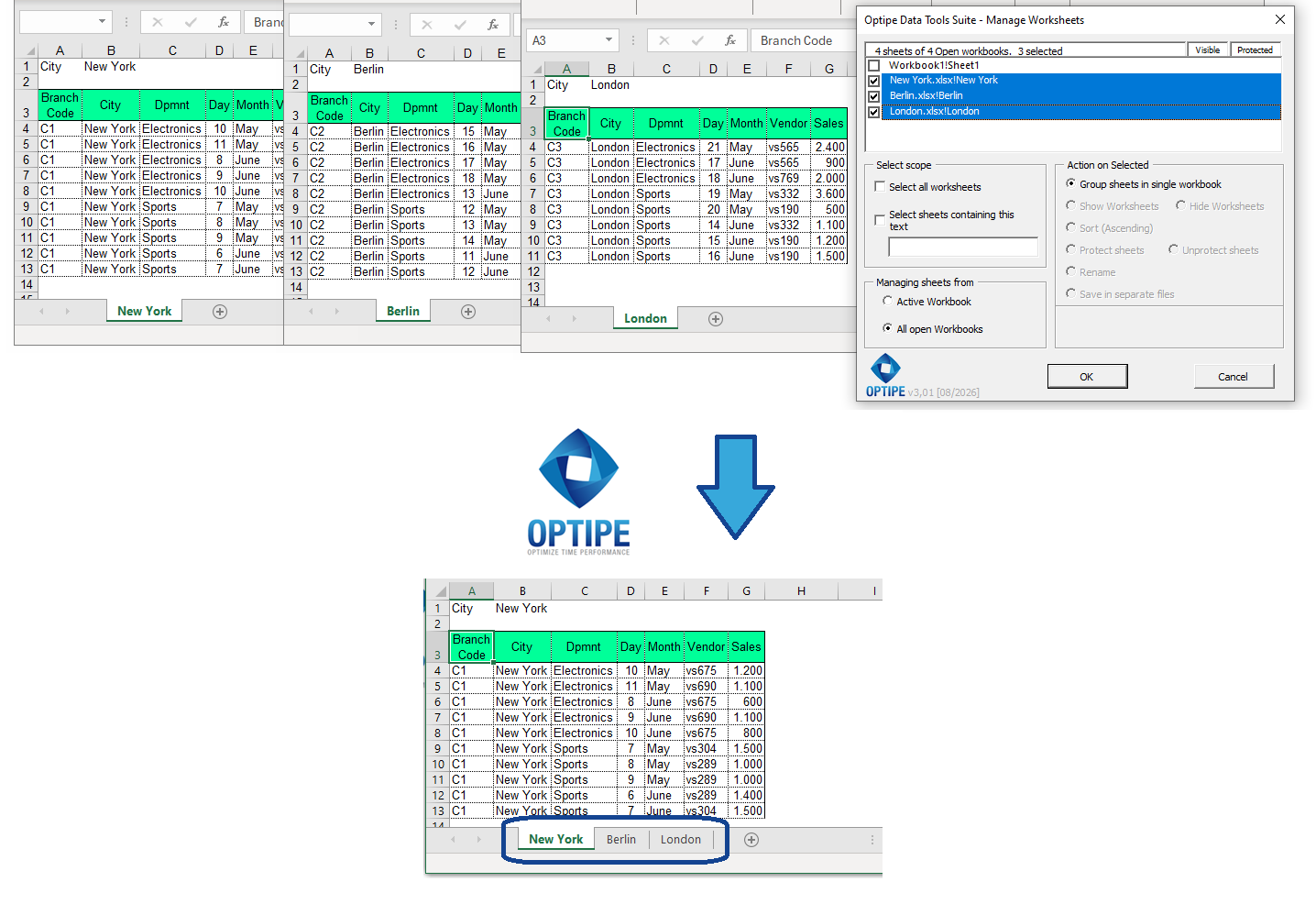
Worksheets from multiple Excel files can be gathered automatically into a single master workbook.
💡 Result
All information becomes available in one centralized workbook, making review, comparison and future consolidation much easier.
🚀 Much more than gathering worksheets into one workbook
Gather Sheets does much more than copy tabs. It helps centralize information, organize reporting processes and prepare data for future analysis and consolidation.
- ✔ Collect worksheets from multiple open Excel files automatically.
- ✔ Create centralized master workbooks for reporting and review.
- ✔ Organize information coming from different locations or departments.
- ✔ Keep the original worksheet structure and files untouched.
- ✔ Reduce repetitive file management tasks.
- ✔ Prepare information for future data consolidation and analysis.
🎥 Video: Gather Worksheets from Multiple Workbooks
Learn how to automatically combine worksheets stored in multiple Excel files into a centralized master workbook.
Gather sheets from different workbooks into one:
📊 Tip: Convert your master workbook into a single consolidated table
💡 Next Step: Once worksheets from multiple files have been gathered into a single master workbook, you can consolidate all those worksheets into one centralized table for reporting, dashboards and business analysis using Append Tables.
📌 Practical Business Scenarios
💰 Budget Collection
Gather budget files submitted by multiple departments into one centralized workbook.
📊 Operational Reporting
Combine reports from different teams before review and analysis.
🏢 Multi-Location Reporting
Collect worksheets from New York, Berlin and London for centralized management review.
📁 Project Coordination
Bring together worksheets generated by multiple project teams into a common workbook.
💡 Gathering Worksheets vs. Consolidating Data
These are complementary tasks, but they serve different purposes.
- Gather Worksheets: collects multiple worksheets into a single workbook while keeping each worksheet separate.
- Consolidate Data: combines data from multiple worksheets into one master table.
- Gather First: centralizes information coming from multiple files.
- Consolidate Later: creates a single dataset ready for analysis and reporting.
Many organizations use both techniques together as part of their regular reporting process.
⏱ Comparison: Manual Method vs. Gather Sheets
| Manual Method | Gather Sheets |
|---|---|
| Open multiple workbooks individually. | Process multiple open files simultaneously. |
| Copy worksheets manually. | Gather worksheets automatically. |
| Create the master workbook by hand. | Generate a centralized workbook instantly. |
| Higher probability of omissions. | Consistent and repeatable process. |
| Time-consuming on recurring processes. | Results delivered in seconds. |
❓ Frequently Asked Questions
Can I gather worksheets from multiple Excel files?
Yes. The application is specifically designed to collect worksheets from multiple open workbooks.
Will the original worksheets remain unchanged?
Yes. The collected worksheets preserve their original structure, and source files remain untouched.
Can I choose only certain worksheets?
Yes. Worksheets can be selected manually or filtered using text criteria.
Does this create a consolidated table?
No. It creates a master workbook containing multiple worksheets. To create a consolidated table, use Append Tables afterward.
Is it useful for budgeting and reporting processes?
Absolutely. These are among the most common business applications.
Do my data leave my computer?
No. All processing is performed locally on your machine.
📚 Related Articles
- Gather Excel Sheets into One Workbook: App Data Tools Suite
- How to Consolidate Multiple Excel Sheets into One Table
- How to Split an Excel Table into Multiple Sheets Easily
- How to Create Excel Files for Each Customer or Branch
- How to Export Every Excel Worksheet to PDF Automatically
- How to Manage Multiple Excel Worksheets in Seconds
Automate your Excel work and save hours every week
Data Tools Suite includes 18 applications to automate data management, tables and worksheets in Excel.
MultiMail lets you send personalized emails, documents and reports directly from Excel.
TRY IT. YOU'LL GET IT.
🚀 Download Freemium Version