Managing multiple Excel worksheets allows organizations to rename, sort, show, hide, protect and organize large workbooks automatically, reducing repetitive work and keeping information structured and secure. This is especially useful for finance, administration, project management, operations and reporting processes that rely on workbooks containing dozens or even hundreds of worksheets.
As workbooks grow, worksheet management becomes increasingly difficult. Finding information, maintaining naming conventions and protecting content often requires repetitive manual work.
Imagine this scenario: your workbook contains one worksheet for New York, Berlin and London, plus dozens of supporting sheets. You need to organize them alphabetically, rename them consistently and apply worksheet protection. How long would that take manually?
Manage dozens of worksheets one by one? ❌
Control all worksheets from a single interface? ✅
Still doing this manually? Merging tables, comparing lists, cleaning data, and consolidating files can take hours each week. Data Tools Suite automates repetitive tasks in 2 clicks inside Excel—no complex formulas or endless prompts—so you can spend your time analyzing.
TRY IT. YOU'LL GET IT.
📌 Common worksheet management challenges
Protection
Protect or unprotect multiple worksheets efficiently.
Renaming
Apply consistent worksheet names automatically.
Organization
Sort and organize worksheets for easier navigation.
Visibility
Show, hide or manage worksheet visibility in bulk.
⚡ Take control of every worksheet
The Manage Worksheets application provides a centralized control panel for worksheet administration, allowing multiple worksheet operations to be performed simultaneously.
Instead of navigating worksheet by worksheet, users can apply management tasks across selected worksheets in a single operation.
Typical actions include renaming, hiding, showing, sorting, protecting and unprotecting worksheets.
🔴 Traditional Approach
- Rename worksheets manually.
- Protect sheets individually.
- Sort tabs by dragging them.
- Show and hide sheets one at a time.
- Repeat the same tasks constantly.
🟢 With Manage Worksheets
- Mass worksheet management.
- Automatic renaming.
- Bulk protection and unprotection.
- Automatic worksheet sorting.
- Centralized worksheet administration.
📝 Example: Organize, rename and secure multiple worksheets
Imagine a workbook containing dozens of worksheets named Sheet1, Sheet2, Sheet3 and so on. Inside each worksheet, cell B1 contains the actual branch office name such as New York, Berlin or London.
The application can automatically rename worksheets using cell B1, sort the worksheets alphabetically and apply protection settings to multiple worksheets simultaneously.
The result is a workbook that is easier to navigate, more consistent and ready for reporting or distribution.
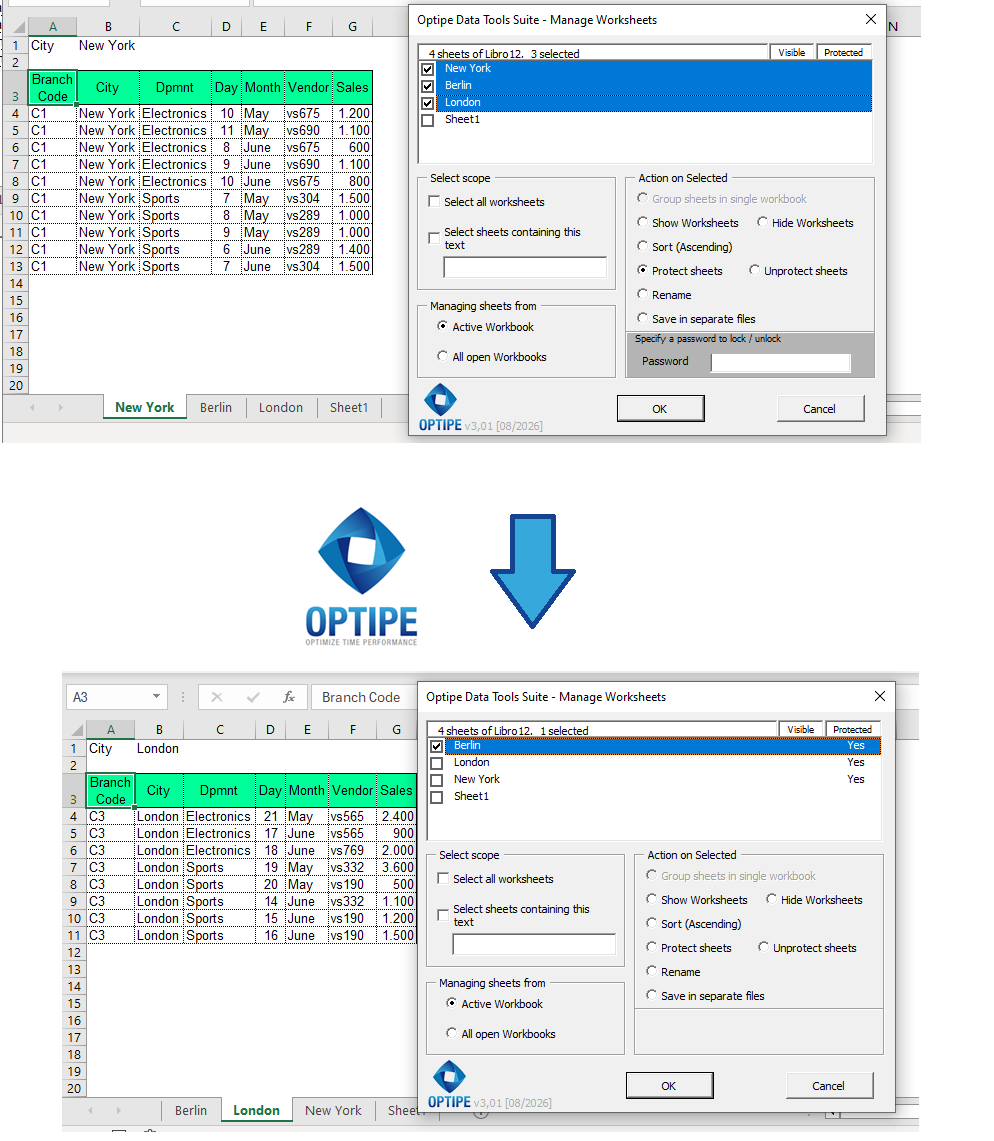
Rename, organize, protect and manage multiple worksheets from a single interface.
💡 Result
Worksheets become better organized, easier to navigate and more secure while reducing repetitive administrative work.
🚀 Much more than organizing Excel worksheets
Manage Worksheets helps you keep large workbooks organized, secure and easy to navigate through worksheet administration tools designed for high-volume Excel environments.
- ✔ Rename worksheets automatically.
- ✔ Sort worksheets alphabetically.
- ✔ Show, hide and manage worksheet visibility.
- ✔ Protect or unprotect multiple worksheets at once.
- ✔ Apply consistent naming conventions.
- ✔ Reduce repetitive workbook maintenance tasks.
🎥 Videos: Managing Excel Worksheets Efficiently
Learn how to rename, sort, hide, show, protect and unprotect worksheets automatically.
Mass rename worksheets:
Sort worksheets alphabetically:
Show, hide, protect and unprotect worksheets:
🔤 Rename Worksheets Using Cell Values
Many automatically generated workbooks contain generic worksheet names such as Sheet1, Sheet2 and Sheet3. However, the correct name often already exists somewhere inside the worksheet.
Manage Worksheets can read a specific cell from every worksheet and use that value as the worksheet name automatically.
For example, if cell B1 contains the branch office name, worksheets can immediately be renamed as:
- New York
- Berlin
- London
This feature is ideal for branch offices, customers, departments, projects and reporting periods.
🔢 Rename Worksheets Using Sequential Numbers
When worksheet content does not contain a suitable identifier, sequential naming can be used instead.
Manage Worksheets allows you to combine custom text with automatic numbering to create consistent worksheet names.
Examples include:
- Report_001, Report_002, Report_003...
- Invoice_001, Invoice_002, Invoice_003...
- Customer_001, Customer_002, Customer_003...
- Project_001, Project_002, Project_003...
This is particularly useful for audits, inspections, certification processes and recurring reporting.
🔒 Protect and Unprotect Multiple Worksheets
Manage Worksheets uses Excel's own worksheet protection features to apply or remove protection across multiple worksheets at once.
This simplifies workbook distribution, template protection and information security processes.
- Protect multiple worksheets simultaneously.
- Remove protection using the same password.
- Prepare templates for distribution.
- Secure reporting and operational workbooks.
⚠️ Important: Bulk unprotection works when the selected worksheets share the same password. If each worksheet uses a different password, Excel requires them to be handled individually and they cannot be unprotected in one operation.
👁️ Show, Hide and Sort Worksheets
Large workbooks often contain supporting worksheets, staging areas, calculations and administrative tabs that do not always need to remain visible.
Manage Worksheets provides centralized visibility management, including hidden and Very Hidden worksheets.
The application can also sort worksheets alphabetically to improve navigation and workbook organization.
- Sort worksheets A-Z or Z-A.
- Show multiple worksheets instantly.
- Hide administrative or supporting worksheets.
- Improve navigation in large workbooks.
⏱ Comparison: Manual Management vs. Manage Worksheets
| Manual Management | Manage Worksheets |
|---|---|
| Rename worksheets individually. | Mass worksheet renaming. |
| Protect worksheets one by one. | Bulk worksheet protection. |
| Drag tabs manually to sort them. | Automatic worksheet sorting. |
| Difficult workbook navigation. | Structured and organized workbook. |
| High administrative effort. | Fast, repeatable processes. |
❓ Frequently Asked Questions
Can I rename worksheets using a cell value?
Yes. Any selected cell can be used as the source for worksheet names.
Can I generate sequential worksheet names?
Yes. Manage Worksheets supports automatic numbering sequences combined with custom text.
Can I protect multiple worksheets at once?
Yes. Excel's worksheet protection features can be applied in bulk.
Can I unprotect worksheets with different passwords?
No. If worksheets use different passwords, they must be handled individually.
Can I sort worksheets alphabetically?
Yes. Worksheets can be sorted automatically in ascending or descending order.
Does this change Excel's security model?
No. The application uses Excel's native worksheet protection capabilities.
📚 Related Articles
- Manage Excel Worksheets in Seconds: App Data Tools Suite
- How to Consolidate Multiple Excel Worksheets into a Single Table
- How to Split an Excel Table into Multiple Worksheets Automatically
- How to Create an Excel File for Each Customer, Branch Office or Department
- How to Export Every Excel Worksheet to PDF Automatically
- How to Create a Master Excel Workbook from Multiple Files
Automate your Excel work and save hours every week
Data Tools Suite includes 18 applications to automate data management, tables and worksheets in Excel.
MultiMail lets you send personalized emails, documents and reports directly from Excel.
TRY IT. YOU'LL GET IT.
🚀 Download Freemium Version