Creating an individual Excel file for each customer, branch office, department or salesperson allows organizations to distribute information efficiently while keeping reports organized, personalized and easy to manage. It is a common requirement in finance, operations, sales, human resources and management reporting.
Many organizations store information for multiple recipients inside a single workbook. When reports need to be distributed individually, employees often spend time copying worksheets, creating workbooks manually and saving files one at a time.
Imagine this scenario: your workbook contains separate worksheets for New York, Berlin and London. Each branch manager requires an independent Excel file. How do you generate all those workbooks automatically instead of repeating the same task over and over?
Create and save every file manually? ❌
Generate all workbooks automatically? ✅
Still doing this manually? Merging tables, comparing lists, cleaning data, and consolidating files can take hours each week. Data Tools Suite automates repetitive tasks in 2 clicks inside Excel—no complex formulas or endless prompts—so you can spend your time analyzing.
TRY IT. YOU'LL GET IT.
📌 Common situations where individual Excel files are required
Branch Offices
Generate a workbook for each location automatically.
Sales Teams
Create one file per salesperson or account manager.
Customers
Prepare customer-specific Excel workbooks for reporting and communication.
Departments
Distribute budgets, KPIs and operational reports by business unit.
⚡ Turn every worksheet into an independent Excel workbook
The Manage Worksheets application automatically saves selected worksheets as separate Excel files, eliminating the need to manually create and organize workbooks.
Each worksheet becomes an independent file, preserving its information and making it ready for reporting, distribution or archival processes.
Although XLSX is the most common output format, the application can also create CSV and TXT files when required by other systems or workflows.
🔴 Traditional Approach
- Create workbooks manually.
- Copy worksheets one at a time.
- Save multiple files individually.
- Assign file names manually.
- Repeat the process for every recipient.
🟢 With Manage Worksheets
- Create one workbook per worksheet automatically.
- Generate multiple files in seconds.
- Preserve the original information.
- Reduce manual effort.
- Prepare files ready for distribution.
📝 Example: Create one Excel file for each branch office
Suppose you have a workbook containing separate worksheets for New York, Berlin and London. Each worksheet represents a branch office and contains information that must be distributed independently.
Instead of manually creating three workbooks, the application automatically exports every worksheet into its own Excel file.
The resulting files are ready to share, archive or process further.
💡 Note: The same approach can be used for customers, projects, departments, salespeople, suppliers, cost centers or any segmentation already represented by separate worksheets.
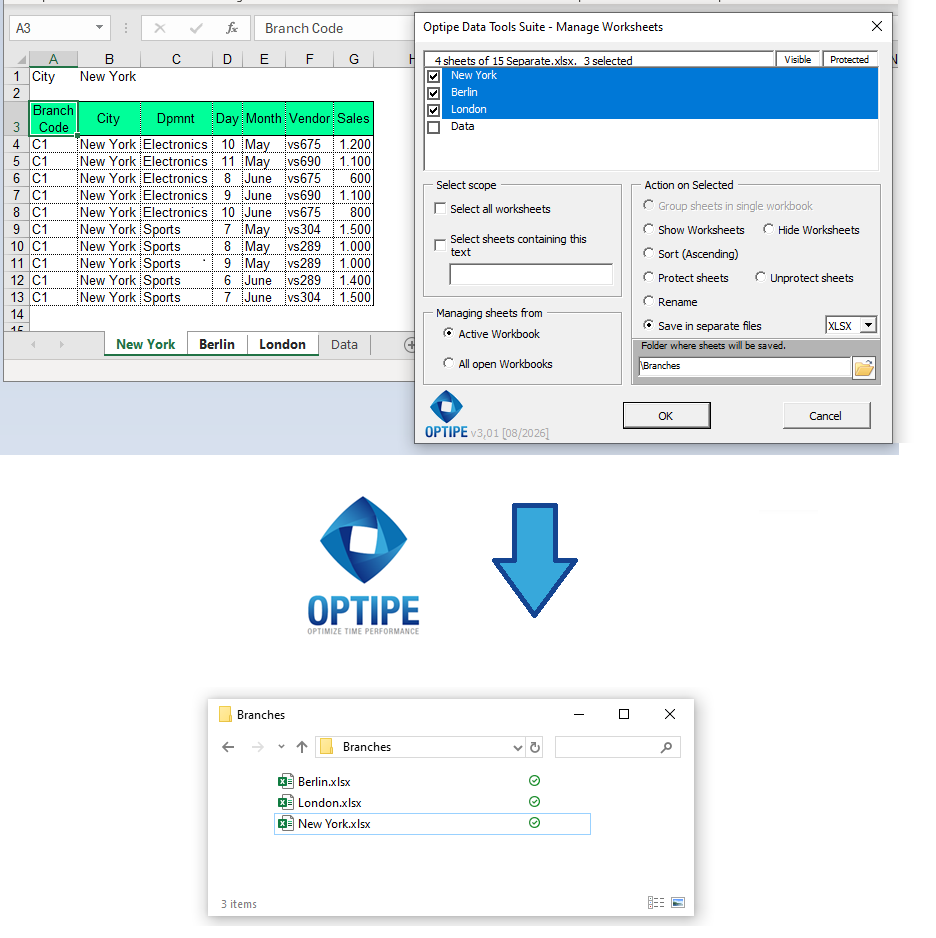
Each worksheet can be exported automatically as an independent Excel workbook.
💡 Result
Every recipient receives an independent workbook containing only the information relevant to them, simplifying reporting and distribution workflows.
🚀 Much more than saving worksheets as Excel files
Manage Worksheets does more than create separate files. It helps automate information distribution, report generation and document management processes throughout the organization.
- ✔ Generate an individual Excel file for every worksheet.
- ✔ Create dozens or hundreds of workbooks automatically.
- ✔ Save worksheets as XLSX files in seconds.
- ✔ Export data to CSV and TXT when required.
- ✔ Prepare files for reporting, sharing and archiving.
- ✔ Eliminate repetitive workbook creation tasks.
🎥 Video: Save Worksheets as Individual Files
Learn how to automatically create an Excel file for every worksheet inside a workbook.
Save worksheets as individual files:
📧 Tip: Email the generated files automatically
💡 Next Step: Once individual Excel files have been generated for each branch office, customer, department or salesperson, you can automatically send them to each recipient using Optipe MultiMail, eliminating the need to manually prepare emails and attachments.
👉 Send Documents and Files from Excel with Outlook | Optipe MultiMail
📌 Practical Business Scenarios
🏢 Branch Office Reporting
Generate independent Excel workbooks for New York, Berlin and London branch offices automatically.
👨💼 Sales Management
Create one workbook per salesperson from a centralized reporting file.
👥 Customer Communication
Prepare customer-specific Excel files without modifying the source workbook.
📊 Departmental Reporting
Distribute budgets, KPIs and operational reports independently to each department.
💡 XLSX, CSV or TXT: Choose the Right Format
Although XLSX is the most common output format, Manage Worksheets can also create CSV and TXT files when information must be exchanged with other platforms or systems.
- XLSX: preserves Excel formatting, formulas and workbook structure.
- CSV: ideal for data exchange between systems.
- TXT: useful for imports, integrations and legacy processes.
This flexibility allows organizations to prepare information for multiple business scenarios without additional manual work.
⏱ Comparison: Manual Method vs. Manage Worksheets
| Manual Method | Manage Worksheets |
|---|---|
| Create workbooks individually. | Generate files automatically. |
| Copy worksheets manually. | Export worksheets directly. |
| Save files one by one. | Create multiple files simultaneously. |
| Higher risk of mistakes. | Reliable and repeatable process. |
| Time-consuming for large workbooks. | Designed for high-volume reporting. |
❓ Frequently Asked Questions
Can I create one Excel workbook per worksheet?
Yes. Each selected worksheet can be exported automatically as an independent workbook.
Will the original worksheet information be preserved?
Yes. The exported files maintain the information contained in the source worksheet.
Can I generate CSV and TXT files too?
Yes. XLSX, CSV and TXT formats are supported.
Can I use this to distribute reports?
Absolutely. Report distribution is one of the most common use cases.
Does it work with large workbooks?
Yes. The application is designed to process large numbers of worksheets efficiently.
Do my data leave my computer?
No. All processing is performed locally.
📚 Related Articles
- Manage Excel Worksheets in Seconds: App Data Tools Suite
- How to Consolidate Multiple Excel Worksheets into a Single Table
- How to Split an Excel Table into Multiple Worksheets Automatically
- How to Export Every Excel Worksheet to PDF Automatically
- How to Create a Master Excel Workbook from Multiple Files
- How to Manage Multiple Excel Worksheets in Seconds
Automate your Excel work and save hours every week
Data Tools Suite includes 18 applications to automate data management, tables and worksheets in Excel.
MultiMail lets you send personalized emails, documents and reports directly from Excel.
TRY IT. YOU'LL GET IT.
🚀 Download Freemium Version