Creating conditional formulas in Excel is one of the most common—and frustrating—tasks in administrative work. Every day, thousands of professionals search for ways to look up values across tables, sum data based on one or more criteria, count matching records, or build increasingly complex IF formulas without introducing errors.
In my nearly 30 years working with Excel in the administrative core of various organizations, few things have consumed as much time as creating and debugging formulas to search, sum, and count data with conditions. From sales reports by salesperson and branch to reconciliations and inventory analysis, these repetitive tasks generate constant frustration.
Classic functions like VLOOKUP, SUMIFS, COUNTIFS, or INDEX + MATCH are powerful, but they are also error-prone, difficult to maintain, and more and more people are turning to AI. Although AI tools such as ChatGPT or Copilot can generate formulas, they usually require several attempts, a good understanding of the data structure, and manual verification to ensure the results are correct.
Imagine this: You need to sum sales of a specific product by salesperson and region, check if a customer exists in another database, or count how many orders meet several conditions… and you end up with extremely long formulas, #N/A errors, and a lot of wasted time.
Keep struggling with complex formulas and constant testing? ❌
Or create them quickly and accurately? ✅
Still doing this manually? Merging tables, comparing lists, cleaning data, and consolidating files can take hours each week. Data Tools Suite automates repetitive tasks in 2 clicks inside Excel—no complex formulas or endless prompts—so you can spend your time analyzing.
TRY IT. YOU'LL GET IT.
📊 Most Common Methods (and Their Pain Points)
SUMIFS / COUNTIFS
The most used for conditional summing and counting. Sum sales by salesperson, branch, or period. Count records matching multiple conditions.
Real pain: Limited to a few criteria and become very complex when you need more conditions.
VLOOKUP / XLOOKUP / INDEX + MATCH
For looking up data based on criteria. Look up product prices or customer information.
Real pain: Frequent #N/A errors, fragile references, and formulas that are hard to read and maintain.
Nested IF Formulas
Combining multiple logical conditions.
Real pain: Very difficult to read, debug, and update when requirements change.
Artificial Intelligence (ChatGPT, Copilot, etc.)
Asking AI to generate the formula.
Real pain: Requires multiple attempts, doesn’t always understand the context, and you still have to manually verify the result.
Want to build lookup and sum formulas without errors? Discover the Create Conditional Formulas App →
⚡ How to Create Conditional Excel Formulas: Traditional Methods vs Automation
The Create Conditional Formula tool in Data Tools Suite acts as an assistant that automatically builds the complex formulas you need, allowing you to focus on analysis instead of syntax.
Create Conditional Formula – Assistant for Advanced Formulas
🔴 How to Do It Manually
- Writing SUMIFS, XLOOKUP or manual combinations
- Testing and fixing syntax and reference errors
- Debugging long, hard-to-read formulas
🟢 Automated with Create Conditional Formula
Select the type of calculation (Search, Sum, Count, etc.) → define up to 3 conditions → the tool generates the precise formula and inserts it into your cell, with smart error handling.
Excel Functions You Can Create Automatically
- SUMIFS
- COUNTIFS
- AVERAGEIFS
- MAXIFS
- MINIFS
- VLOOKUP
- XLOOKUP
- INDEX + MATCH
-
UNIQUE and FILTER
Examples of Conditional Formulas in Excel for Summing, Counting, and Looking Up Data
💡 Practical Example: Sales Analysis and Consolidation by Branch and Month
Imagine you have a spreadsheet with detailed sales records by department and you need to automate a dynamic summary table. We want to instantly extract key metrics for branch "S1" (New York) during the month of "May" without wasting time writing the syntax by hand.
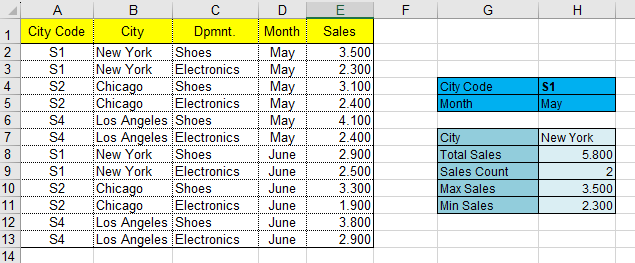
Mapping criteria and calculation cells in the worksheet.
=SUMIFS(E2:E13, A2:A13, H3, D2:D13, H4)
=COUNTIFS(A2:A13, H3, D2:D13, H4)
=MAXIFS(E2:E13, A2:A13, H3, D2:D13, H4)
=MINIFS(E2:E13, A2:A13, H3, D2:D13, H4)
This tool allows you to create robust formulas for searching, summing, and counting with conditions much faster and more reliably, perfectly complementing other functions such as Merge Tables or Compare Lists.
Creating conditional formulas in Excel shouldn't consume hours of your workweek. Whether you need to search data across tables, calculate totals using multiple criteria, count matching records, or replace complicated nested formulas, automation lets you work faster with fewer errors. Conditional Formula Builder helps you create advanced formulas visually, without memorizing syntax.
⏱️ Real Time Savings: Manual vs. Create Conditional Formula
| Task (formulas with 2-3 conditions) | Manual / AI | With the Tool |
|---|---|---|
| Create and debug complex formula | 15-40 minutes | 20-60 seconds |
| WEEKLY TOTAL (multiple reports) | 4-8 hours | 5-10 minutes |
📚 Related Articles
📚 Recommended Expert Resources
📚 Want to keep improving your Excel productivity?
Go to Optipe Blog →Automate your Excel work and save hours every week
Data Tools Suite includes 18 applications to automate data management, tables and worksheets in Excel.
MultiMail lets you send personalized emails, documents and reports directly from Excel.
TRY IT. YOU'LL GET IT.
🚀 Download Freemium Version