Understanding how information flows across a workbook is often just as important as the results it produces. Formulas depend on other cells, calculations feed additional totals, comments contain important documentation, and hyperlinks connect users to external resources.
The challenge begins when you inherit a workbook, review a financial model, or maintain an Excel file created by someone else. Locating dependencies, comments and links manually can be complicated and time-consuming.
Imagine this situation: you must modify a critical spreadsheet but first need to understand which cells feed a calculation, which results depend on it, and what documentation exists inside the workbook.
Trace formulas and references manually? ❌
Audit workbook structures in seconds? ✅
Still doing this manually? Merging tables, comparing lists, cleaning data, and consolidating files can take hours each week. Data Tools Suite automates repetitive tasks in 2 clicks inside Excel—no complex formulas or endless prompts—so you can spend your time analyzing.
TRY IT. YOU'LL GET IT.
📋 Key elements for spreadsheet auditing
Dependent Cells
Cells whose results depend on other values or formulas.
Precedent Cells
Cells that contribute to a formula calculation.
Comments
Documentation and notes embedded inside the workbook.
Hyperlinks
Links to websites, files and supporting resources.
⚡ Understand how information flows
The Select and Filter Cells application allows you to locate dependent cells, precedent cells, comments and hyperlinks inside any workbook.
Instead of tracing relationships manually, you can identify key auditing elements automatically and focus on understanding the structure of your model.
🔴 Traditional Approach
- Inspect formulas manually.
- Trace references step by step.
- Search comments visually.
- Check hyperlinks individually.
🟢 With Select and Filter Cells
- Locate auditing elements automatically.
- Review complex workbook structures.
- Find embedded documentation.
- Understand data relationships faster.
📝 Example: Auditing a complex workbook
Financial models, budgets, KPI dashboards and operational spreadsheets often contain many interconnected formulas and references.
Understanding those relationships before modifying the workbook reduces the risk of accidental errors and broken calculations.
💡 Note: This example intentionally combines several auditing elements inside a single worksheet to demonstrate different workbook analysis techniques.
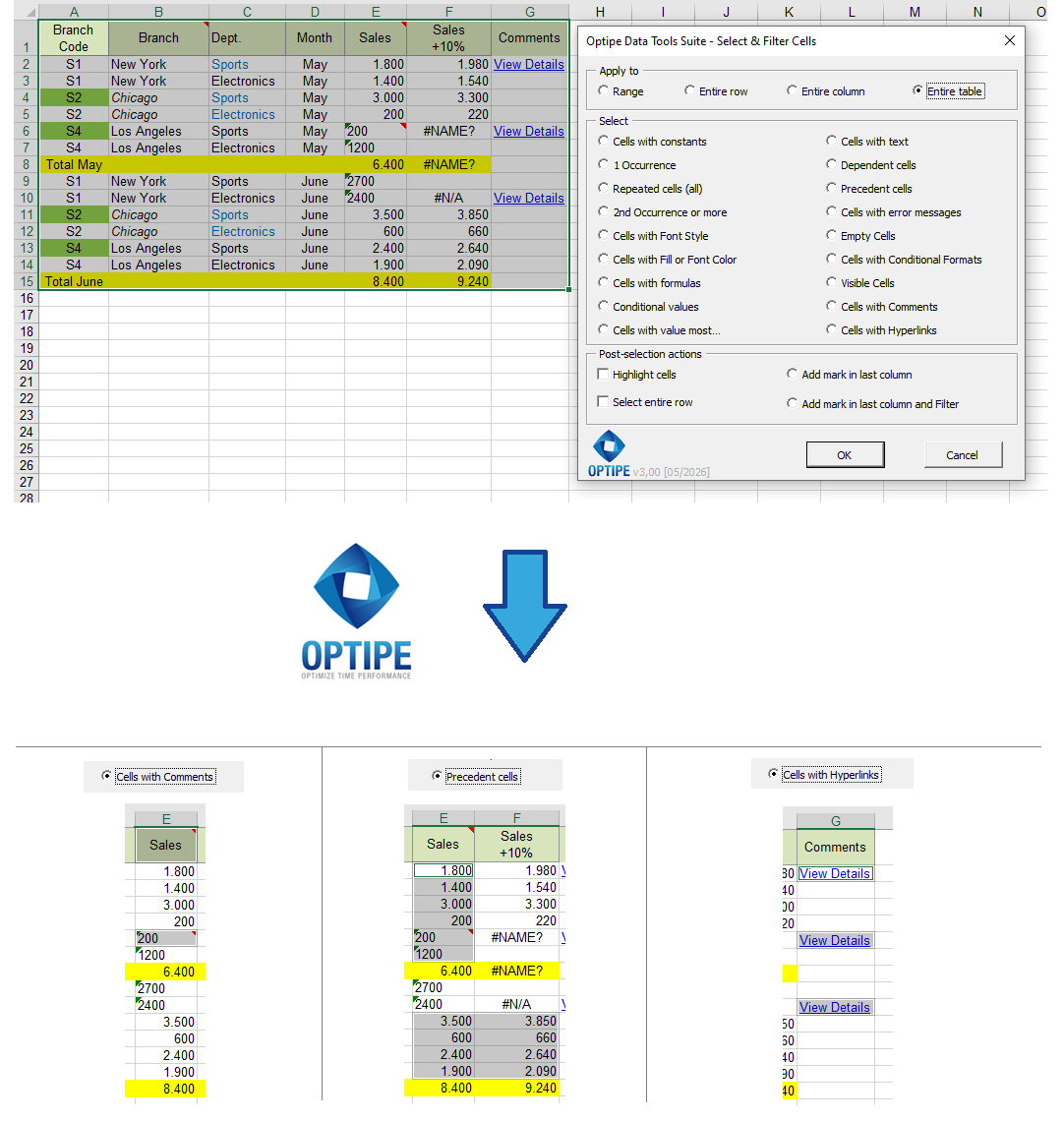
Dependencies, precedents, comments and hyperlinks reveal how a workbook is structured and maintained.
💡 Result
Critical workbook relationships become visible immediately, making audits and maintenance activities much easier.
💡 Work with complete records: Enable "Select entire row" to copy, move or delete complete rows associated with the records found.
🚀 Much more than comments and references
Understanding workbook relationships can be just as important as understanding the numbers themselves.
- ✔ Identify dependent cells automatically.
- ✔ Locate precedent cells feeding a calculation.
- ✔ Find comments and embedded notes.
- ✔ Detect hyperlinks across large worksheets.
- ✔ Review workbook documentation faster.
- ✔ Understand complex spreadsheet structures.
🎥 Videos: Excel Workbook Auditing
Learn how to understand workbook relationships and locate supporting documentation inside Excel files.
Select dependent and precedent cells:
Select cells containing comments:
📌 Where Workbook Auditing Matters Most
💰 Financial Models
Understand how calculations are connected before modifying formulas and assumptions.
📊 Budgeting Workbooks
Review dependencies and impacts before changing critical business figures.
👥 Collaborative Workbooks
Locate comments, notes and supporting information added by multiple users.
🌐 External References
Find hyperlinks pointing to websites, files and supporting documentation.
💡 Practical Workbook Auditing Techniques
Workbook auditing becomes especially valuable when maintaining spreadsheets created by other users.
- Dependent Cells: identify which calculations may be affected by a change.
- Precedent Cells: understand where a result comes from.
- Comments: locate embedded documentation and notes.
- Hyperlinks: discover connections to external resources.
📋 Example: Review a Workbook Before Making Changes
One of the biggest risks in Excel is modifying formulas without understanding every dependency attached to them.
Locating precedents and dependents first allows you to evaluate the impact of changes before they are introduced.
💡 Tip: Before deleting worksheets, moving formulas or restructuring a workbook, review dependent and precedent cells to avoid breaking calculations.
⏱ Comparison: Manual Auditing vs. Select and Filter Cells
| Manual Auditing | Select and Filter Cells |
|---|---|
| Inspect formulas manually. | Identify workbook relationships automatically. |
| Search comments individually. | Locate all comments instantly. |
| Review hyperlinks one by one. | Select hyperlink cells automatically. |
| Time-consuming workbook analysis. | Fast and structured auditing process. |
❓ Frequently Asked Questions
What are dependent cells?
Dependent cells contain formulas that rely on values from other cells.
What are precedent cells?
Precedent cells are the inputs used by a formula to produce a result.
Can I locate all comments in a worksheet?
Yes. The tool can identify all cells containing comments or notes.
Can I find hyperlinks automatically?
Yes. Hyperlinks can be selected and reviewed without manual searches.
Does this change formulas?
No. The application only selects and identifies cells matching the chosen criteria.
Is this useful for financial auditing?
Absolutely. Workbook auditing is one of the most effective ways to understand complex calculation models before modifying them.
📚 Related Articles
Automate your Excel work and save hours every week
Data Tools Suite includes 18 applications to automate data management, tables and worksheets in Excel.
MultiMail lets you send personalized emails, documents and reports directly from Excel.
TRY IT. YOU'LL GET IT.
🚀 Download Freemium Version